When you upload a file – a batch of Mail, a Contacts update, or similar – Payreq Delivery checks it against the Payreq Interface Specification before processing it. If the file doesn't meet the spec, the Job shows an Error status instead of completing. This article covers what that means, common causes, and how to fix and resubmit the file. See What are Jobs? for what a Job is in general.
TABLE OF CONTENTS
- Job statuses
- What causes a Job to error
- First things to check
- Common error examples
- If a Job seems stuck rather than errored
- Get notified when a Job fails
- When to contact Payreq Support
- Related articles
Before anything else: make sure the right person is actually notified when a Job fails. Job errors aren't shown anywhere unless someone checks the Jobs tab, so if nobody has A job has failed turned on in their notification settings, a failed file can sit unnoticed. See "Get notified when a Job fails" further down this article.
Job statuses
Payreq reports these four Job statuses:
| Status | What it means |
|---|---|
pending-file |
The Job has been created and Payreq is waiting to collect the referenced file. |
in-progress |
Payreq is processing the Job. |
done |
Payreq has completed that Job's processing. |
error |
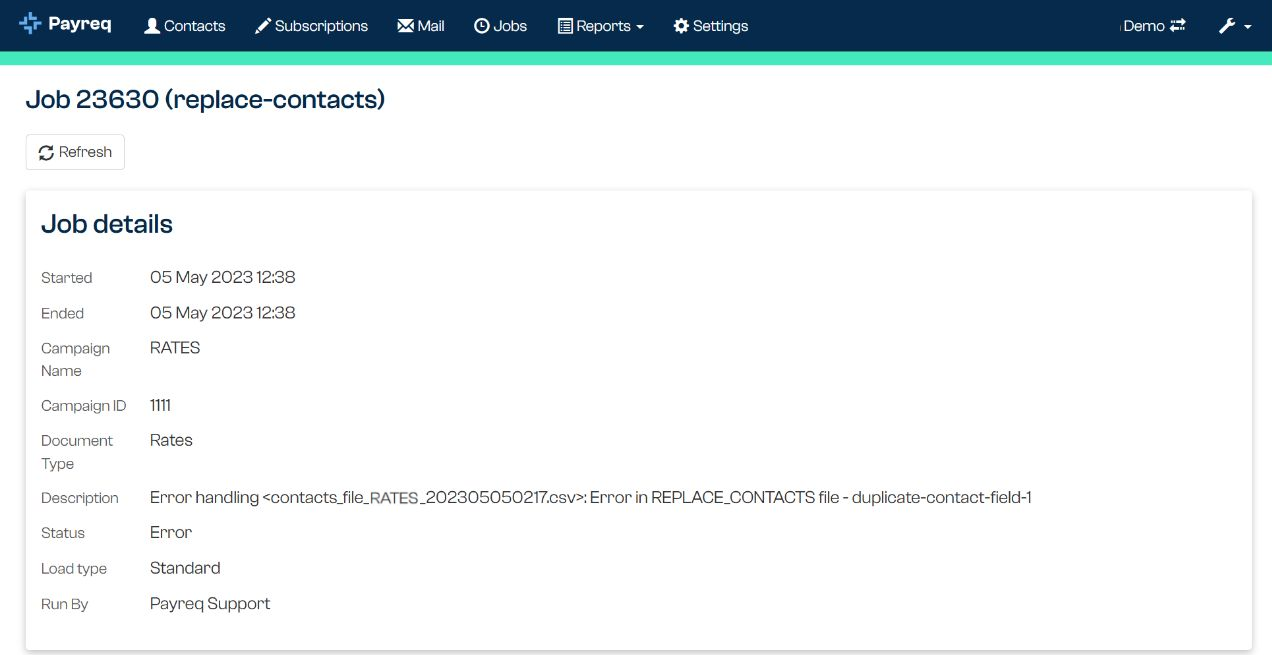
The Job failed. Open the Job details to see the available error description. |
What causes a Job to error
An Error status means the file failed validation before Payreq processed any of it, or stopped partway through. This is separate from Undeliverable, which is a per-document review flag that can appear after a successful load, when one delivery channel fails for an otherwise-processed document – see Handling Undeliverable Mail for that scenario. This article covers file-level Job errors specifically.
The general fix, in every case, is the same:
- Read the error message shown in the Job's details.
- Check the relevant section of the Payreq Interface Specification for the file type involved (Contacts, Bill, Payroll, or External).
- Correct the file.
- Give the corrected file a new, unique File ID – Payreq rejects a resubmission that reuses a previous File ID.
- Resubmit.
See Payreq Interface Specification for the full spec.
If you're not sure how to correct a file yourself, your mailhouse or technical contact who generates the file is usually best placed to make the fix, since it typically means adjusting the file-generation process rather than the individual file.
First things to check
Before digging into a specific error message, these cover most causes:
- Column count. The most common fault. A Contacts row needs 19 columns, a Bill row needs 32 (older 4.x interface versions) or 50 (5.1.0), a line-item row needs 14, a Payroll row needs 11, and an External row needs 3. Optional fields can be blank, but the column (and its delimiting comma) still needs to be there.
- Trailer count. The trailer record's count must match the number of data rows in the file (excluding the header and trailer itself).
- File ID uniqueness. Every file you send needs a unique File ID. Reusing one from an earlier file – even a failed one – causes a rejection.
- Character set. Use plain ASCII characters only, including in filenames. Accented characters anywhere in the file can break processing.
- Interface version. The version number in the file header must match what's expected for that file type – Contacts files use
4.0.0, Bill files use5.1.0(or the legacy4.5.0), External files use4.0.0, and Payroll files use4.2.0.
Common error examples
These are real examples from recent failed Jobs, showing the kind of error message you might see and how each was resolved:
| File | Error shown | Cause | Fix |
|---|---|---|---|
| Contacts file | Value 4.5.0 failed validation for interface-spec-ver |
The file was submitted as a Contacts file but used the Bill file interface version (4.5.0) instead of the Contacts version. | Set the interface version to 4.0.0 for Contacts files. Confirm the header has 11 columns and every Contacts row has 19. |
| Bill Summary file | Value [File ID] failed validation for transaction-id |
The File ID was 36 characters long. The maximum is 32. | Generate a new File ID of 6–32 alphanumeric characters and resubmit. |
| Bill Archive file | Too few fields in bill line |
The bill rows only had 17 fields; the 4.5.0 format requires 32. Likely an export fault dropping empty trailing columns. | Update the file generation so every row has all 32 fields, using empty values (not omitted columns) where a field doesn't apply. |
| Bill extract file | Too few fields in bill line |
Similar to above – rows had 18 fields instead of the 32 required, most likely from an export process trimming unused trailing columns. | Same fix: restore all 32 columns per row, checking every row rather than just the first one the console flags. |
| Bill file (rates notice) | Value [long name] failed validation for bill-ref-3 |
The Customer Name field was 125 characters. The interface allows a maximum of 100. | Use an abbreviated version of the name (100 characters or fewer) in this field. The full legal name can still appear on the PDF itself. |
| Contacts update via SFTP or API | duplicate-biller-account-number | The same Contact ID appears more than once in the Contacts update. For API requests, this is the biller-account-number value. Payreq rejects the whole update before processing any Contacts. | Remove the duplicate so each Contact ID appears once, then resubmit the update. For SFTP, use a new, unique File ID. |
A note on troubleshooting these. Payreq stops validating a file at the first row that fails, so the error message only tells you about one problem – there may be others further into the file. Check every row against the spec before resubmitting, not just the one named in the error.
If a Job seems stuck rather than errored
Occasionally a Job remains at pending-file rather than moving to in-progress. If the file was submitted via the API rather than uploaded through the console, this can mean the file wasn't found where expected when the Job ran. Double-check that the referenced filename matches exactly, and allow a few minutes before assuming something is wrong because file transfer can be queued rather than instant.
Get notified when a Job fails
A Job doesn't push an alert to anyone by default – an Error status just sits in the Jobs tab until someone looks. For anything time-sensitive (a bill run, a Contacts update ahead of a deadline), that's too slow to rely on.
Make sure at least one appropriate user – someone who can either fix the file themselves or knows who to forward it to (your mailhouse or technical contact) – has the A job has failed notification turned on, ideally set to Immediately. This is a per-user setting, not account-wide, so it's worth checking who actually has it enabled rather than assuming someone does.
See User Notifications for how to set this up, and Managing Users in Payreq Delivery for reaching a user's notification settings in the first place. If your organisation uses a mailhouse to generate files, it's worth confirming with them who on their side should also be notified, so a failure doesn't wait on someone at your end to notice it before it's even passed along.
When to contact Payreq Support
If you've checked the file against the spec and the fix still isn't clear, or the same file keeps failing after correction, contact Payreq Support rather than guessing further. Include:
- The full error message from the Job's details.
- The header row of the file.
- One example of a failing data row (with any personal information removed).
Submit a ticket with this information so Payreq Support can investigate without needing to ask for it separately.
Related articles
Was this article helpful?
That’s Great!
Thank you for your feedback
Sorry! We couldn't be helpful
Thank you for your feedback
Feedback sent
We appreciate your effort and will try to fix the article