Payreq Delivery users are managed from the Account Permissions tab. From there, users with the required access can invite new users, update existing user details, manage permissions, and reach user notification settings.

Permissions and notification preferences are managed separately for each user, so you can control what each user can access, and which operational items they're notified about. For notifications, see User Notifications.
Before you start
To manage users, you need access to the relevant Payreq Delivery account and permission to access Settings.
Consider what level of access a user needs before you invite or update them. Permissions can be set for these areas, and each can be set to a different level:
- Contacts
- Registrations (Subscriptions)
- Settings
Each area can be set to View only or Edit.
Add a new user
- Log in to Payreq Delivery.
- Open the relevant Delivery account.
- Select Settings from the main menu.
- Open the Account Permissions tab.
- Select Invite User.
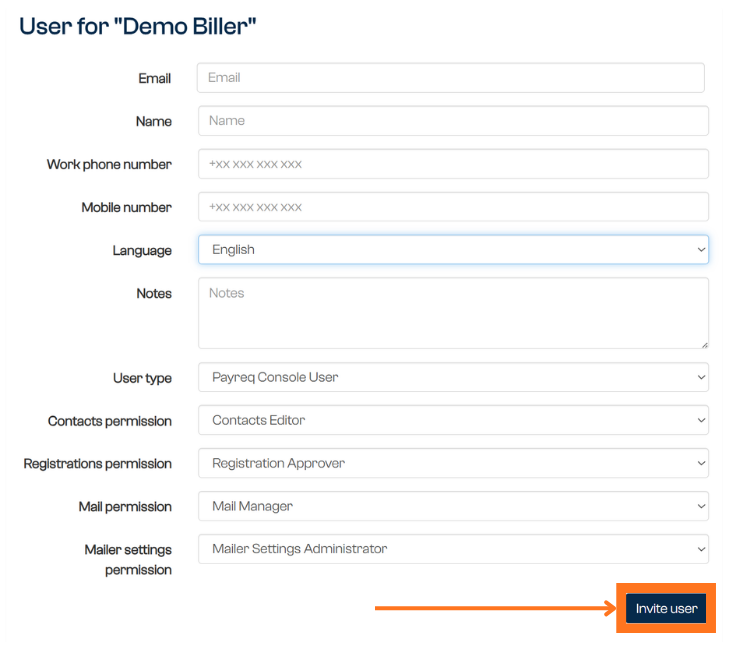
- Enter the user's details, including their name and email address.
- Assign the required permissions for each area.
- Select Invite User.
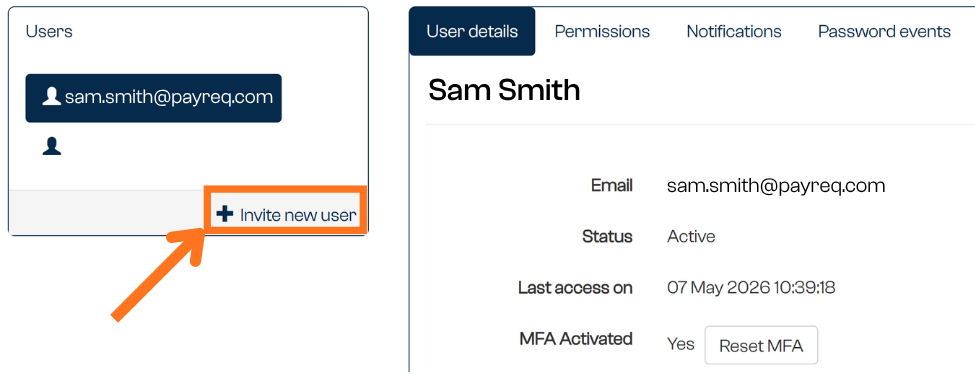
The invited user receives an email invitation to access the account. Names shown in italic are users who haven't logged in yet, and you can select the blue button next to their email address to re-send their invitation.
Update an existing user
- Select the user you want to update.
- Update their details or permissions as required.
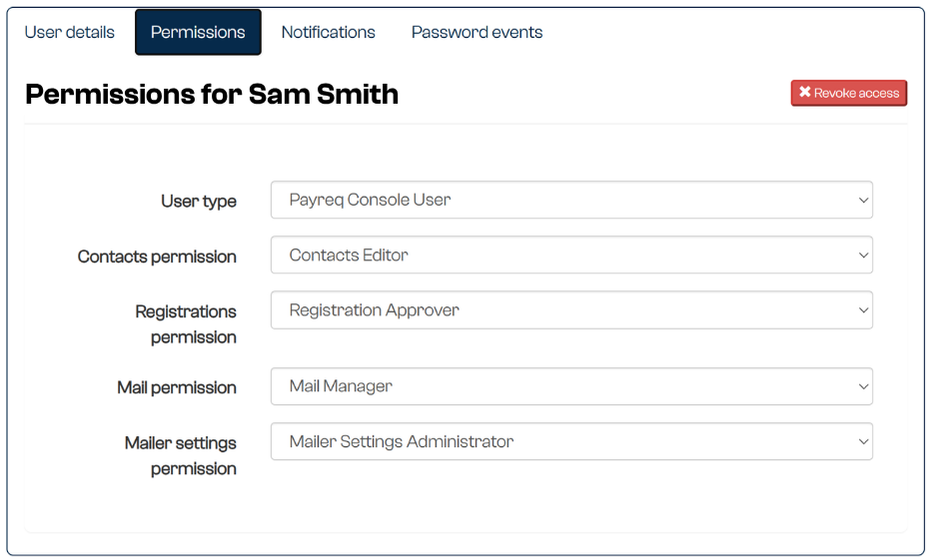
Update a user's permissions if their role changes, or if they need access to additional areas.
Remove a user
Users who no longer need access should be removed from the account.
- Select the user you want to remove.
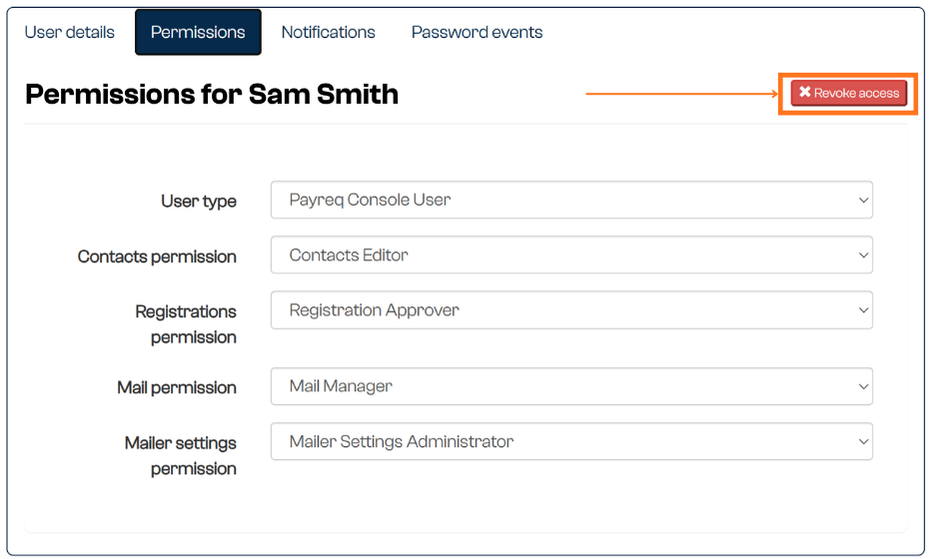
- Open their Permissions tab.
- Select Revoke to remove their access.
Review user access regularly, particularly when staff leave your organisation or change roles.
Mailhouse and partner users
If you work with a mailhouse, they often need access to the account too, though usually less often than your own team. The most common mailhouse user is an API user, which can send and retrieve API calls that support the mailhouse's functions. Depending on your relationship or contract, both the mailer and the mailhouse may act as administrators, and we encourage mailhouse partners to use the platform to its fullest.
Each organisation manages its own users, but take care before granting or revoking access to a user you don't recognise. In particular, don't revoke a mailhouse API user without checking first, since it may perform a critical function and its email address may look unfamiliar. If you're unsure who a user is or why they have access, check with the other team before making a change.
Was this article helpful?
That’s Great!
Thank you for your feedback
Sorry! We couldn't be helpful
Thank you for your feedback
Feedback sent
We appreciate your effort and will try to fix the article