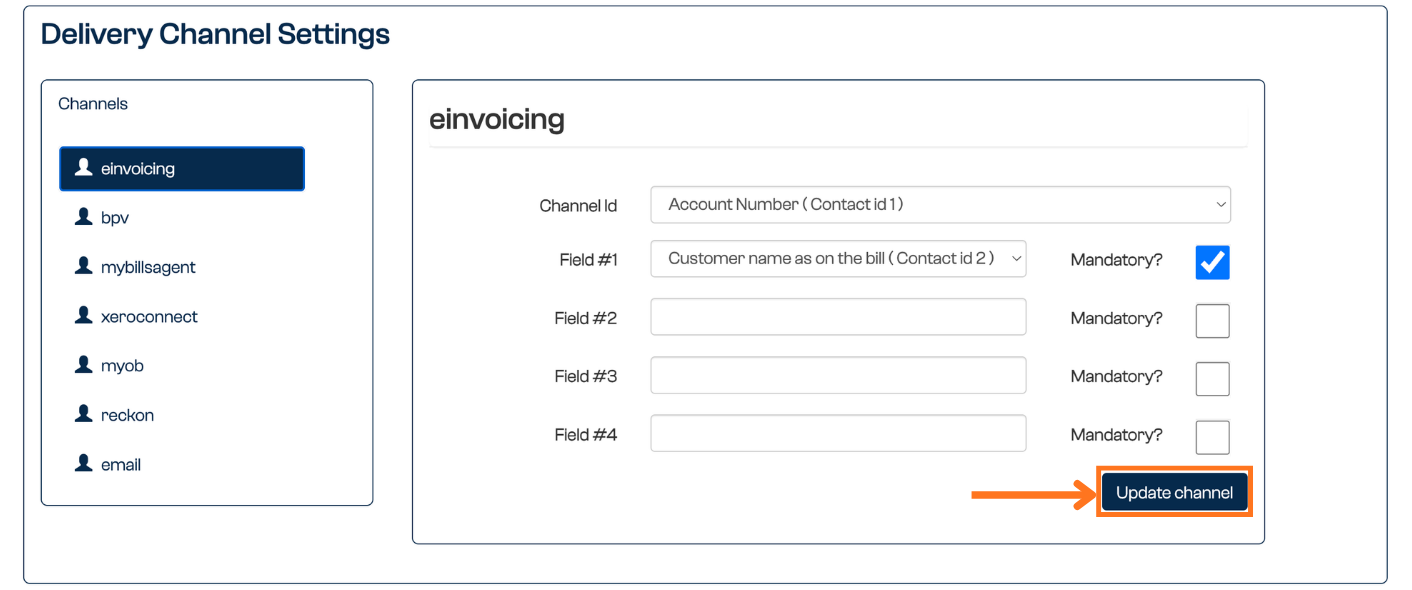
Delivery Channel Settings control how each delivery channel behaves for your account. Most channels, including Payreq Mailbox, BPAY View, and Peppol eInvoicing, are configured during onboarding and should only be changed with the help of Payreq Support, since they affect how documents reach your customers.
The channel you're most likely to adjust yourself is Email, which controls the wording and template of the email notifications your customers receive.
Email channel settings
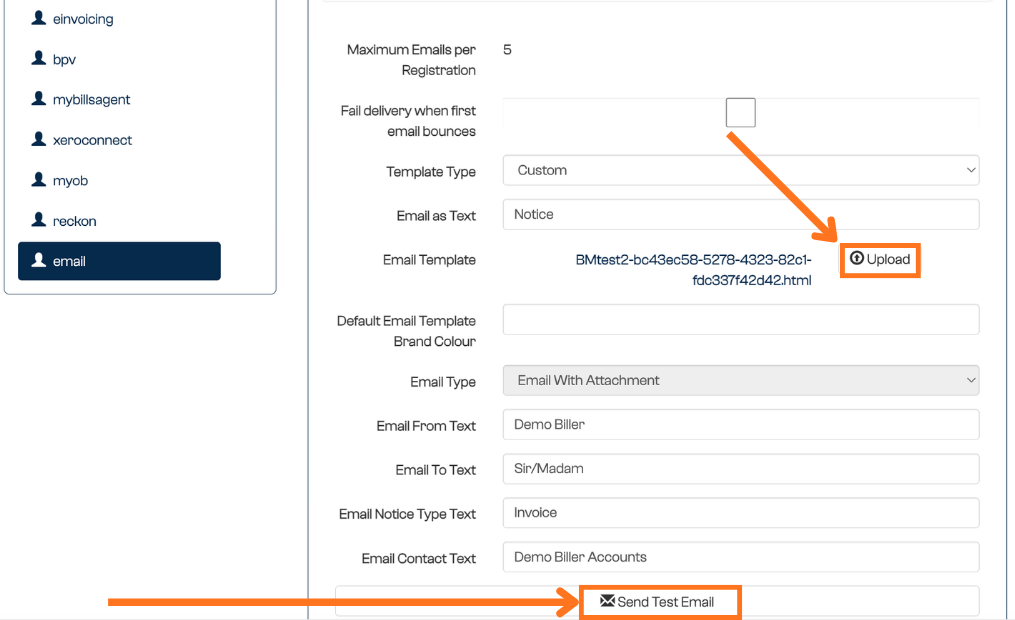
Go to Settings > Mailer, scroll to Delivery Channel Settings, then select email. You can control the text and template used for email notifications:
| Setting | What it controls |
|---|---|
| Template Type | Whether Payreq uses its default template, a stored Custom template, or HTML supplied with each bill in an SFTP document load. |
| Email as Text | Supplies the {{email-as-text}} value Payreq uses when building the email subject line. It is not an email-body field. |
| Default Email Template Brand Colour | The default brand colour applied to the email template. |
| Email from Text | The sender wording the recipient sees on the notification. |
| Email to Text | How the recipient is addressed in the email, for example "Ratepayer". |
| Email Notice Type Text | The notice-type wording shown in the email, for example "Annual Rates Notice" or "Reminder Notice". |
| Email Contact Text | The contact wording or reference shown in the email. |
For the complete list of HTML template fields, conditional syntax and configuration-dependent values, see Using fields and conditions in HTML email templates.
Uploading or replacing a stored Custom template
A Custom template is stored against one Payreq Delivery account. Confirm that you are working in the correct account before replacing it.
The Email channel shows one stored Custom template and does not provide a visible template history, download control or rollback option. Keep the source file for your current template before replacing it. If you do not have that file or another confirmed way to restore the template, contact Payreq Support before continuing.
To upload or replace a Custom template:
- Set Template Type to Custom.
- Select Upload beside Email Template.
- In Upload new shared document, enter a name and select Choose files.
- Select the
.htmltemplate file. - Wait until the upload reaches
100%and Upload template becomes available. - Select Upload template.
- Confirm that Payreq displays the new generated filename beside Email Template.
- Reload the page and confirm that Template Type is Custom and the new filename is still displayed.
Upload template saves the template replacement. You do not need to select Update channel for the uploaded filename to persist.
When you introduce a new notice type or replace a template, review Email Notice Type Text so the wording customers see remains consistent with the document.
Before using the template for a live run, arrange a test email to an approved internal recipient and confirm the recipient before sending. Check the subject, sender details, visible body, links and attachment separately. Confirm that every expected value appears and that there are no unexplained gaps or missing content.
HTML supplied in SFTP document loads
Some senders use a more advanced mode where a custom HTML email is supplied with each bill at upload, rather than using a stored Custom template. To use it, set the Email channel Template Type to Provided in SFTP document load, and supply an HTML file for each bill as defined in the Payreq Interface Specification.
Other channels
BPAY View, Peppol eInvoicing, and the other channels are set up during onboarding. Change these only with the assistance of Payreq Support. For what each channel offers your recipients, see Subscription channels: what's available in Payreq Delivery.
Was this article helpful?
That’s Great!
Thank you for your feedback
Sorry! We couldn't be helpful
Thank you for your feedback
Feedback sent
We appreciate your effort and will try to fix the article