This guide covers how to log in to Payreq Delivery, choose the right account if you have more than one, and find your way around once you're in.
Logging in
- Go to go.payreq.com.
- Enter your email address and select Next.
- Enter your password and select Sign in.
- Complete multi-factor authentication if you're prompted for it.
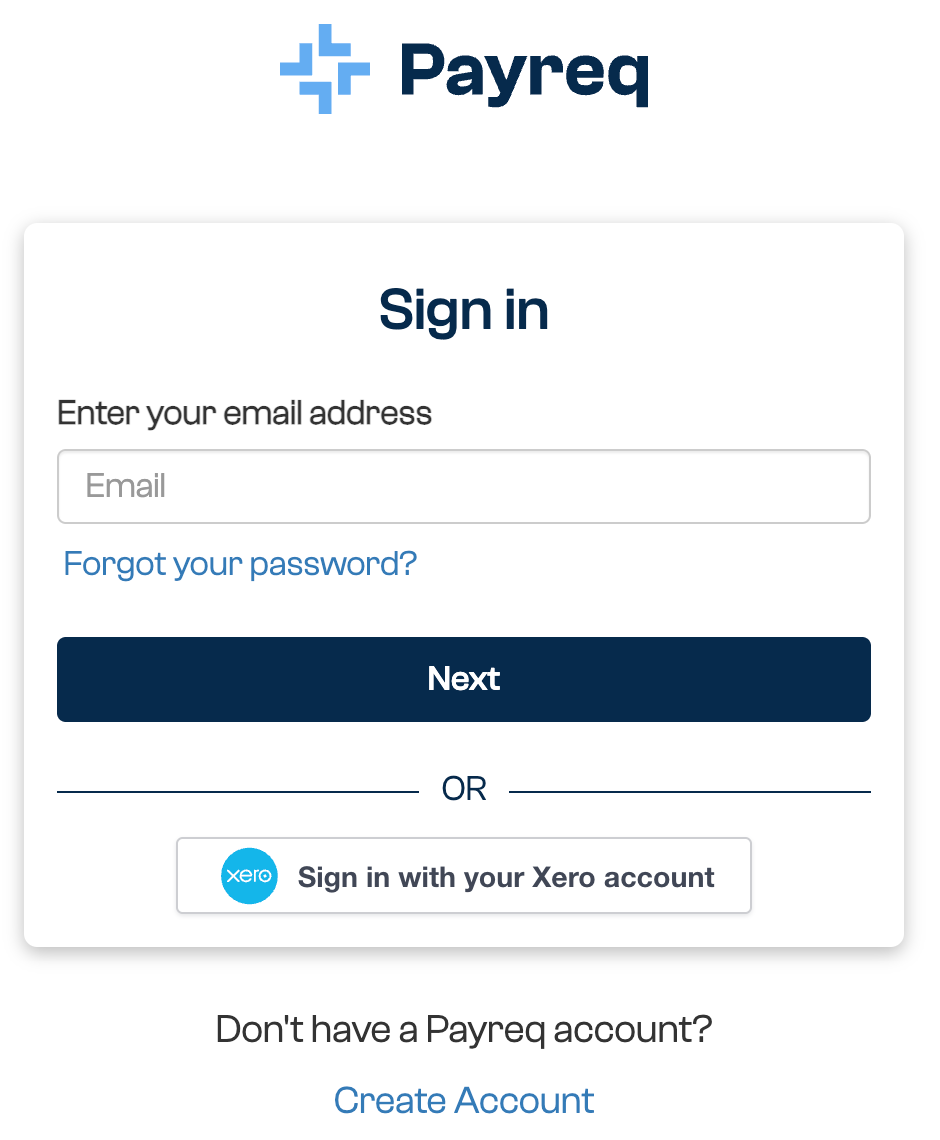
Once you're signed in, you land on your Payreq Delivery dashboard, unless you have access to more than one account (see below).
Multi-factor authentication may not be required, depending on your organisation's policy. Even where it isn't enforced, we recommend turning it on wherever you can. It's an important step for keeping your account secure.
If you can't log in, check that you're using the correct email address, and reset your password using the Forgot password link if needed. If you still can't get in, contact Payreq Support.
Choosing the right account
If your login is connected to more than one Payreq account, for example another Delivery account, or a personal Payreq Mailbox, you land on the account selection screen instead of going straight to a dashboard.
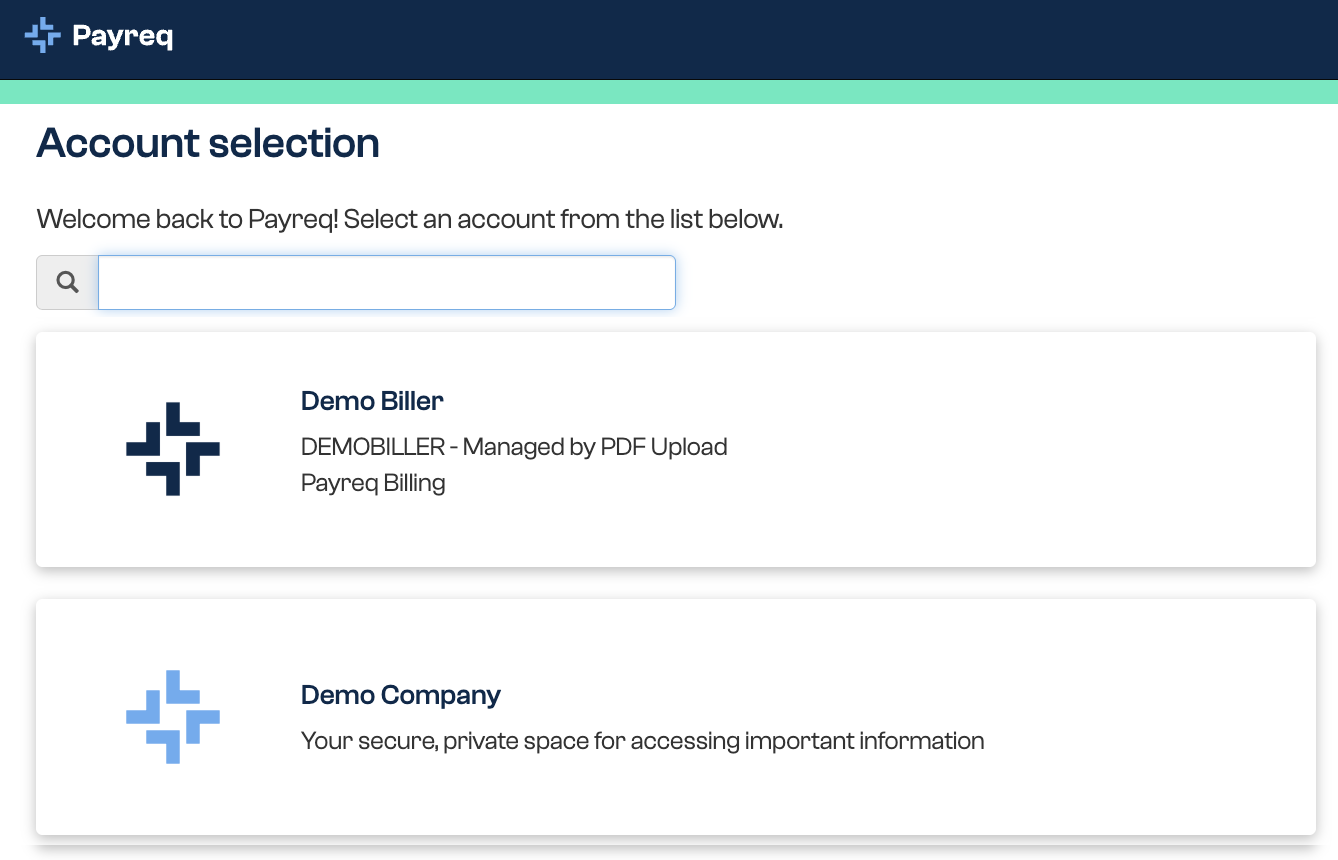
Select the account you want to open. If the list is long, use the search bar at the top to find it.
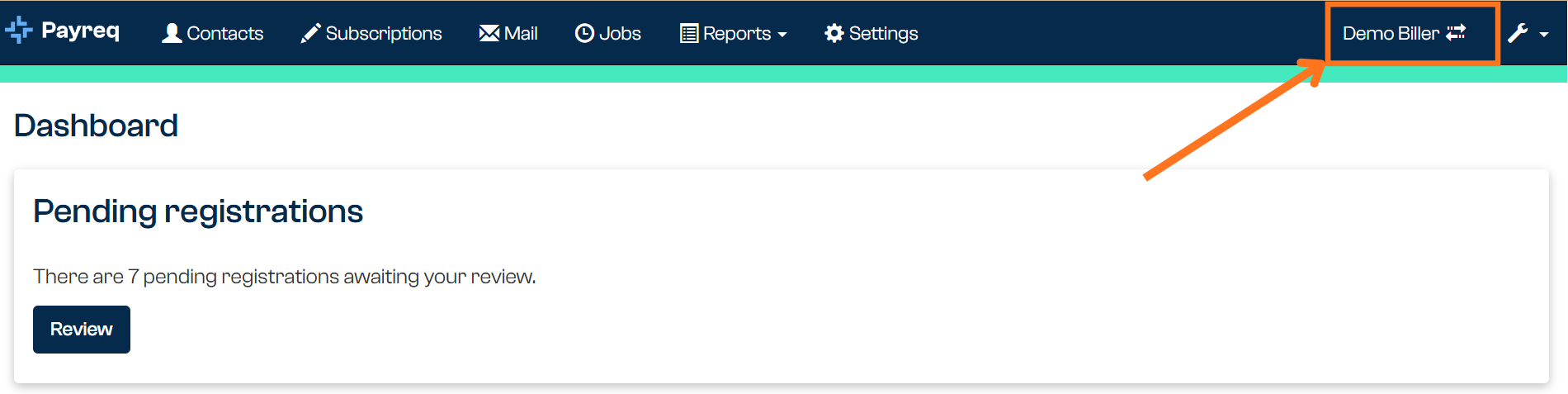
You can switch accounts at any time using the account menu in the top right corner of the screen. This is useful if you manage more than one organisation's account, or operate accounts on behalf of others.
Your dashboard
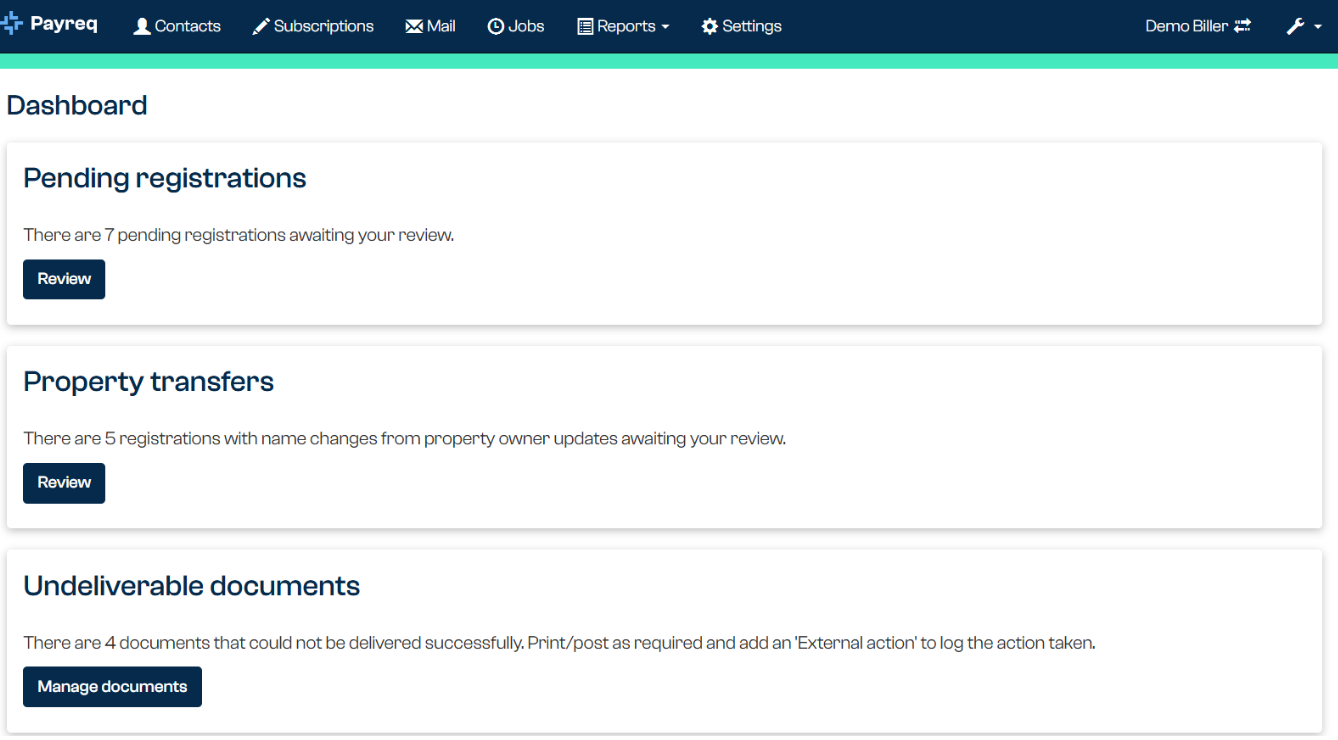
The dashboard is the central hub of your account. It highlights whatever currently needs your attention, so the tiles you see vary depending on what's outstanding: when there's nothing in a given category, its tile doesn't appear. Tiles you may see include:
- Subscriptions awaiting approval: recipients who have requested digital delivery and are waiting for you to approve or decline them. Open the list to review each request.
- Undeliverable Mail: documents where delivery failed on at least one channel, for example because of an invalid address or no active Subscription. They may still have been delivered on another channel. You can review these, action them, or send them to fallback print, and the action is recorded for audit.
- Mail in error: Mail that failed because of incorrect Contact details, formatting, or missing data. Open it to review and fix the issue.
- Mail awaiting approval: if your workflow includes an approval step, Mail waiting for final approval before it's sent. You can approve or decline it here.
At the bottom of the dashboard, the account snapshot gives a persistent summary of your account, including your most recent Contact file upload, your total Contacts, and the number of active Subscriptions.
The main menu
The menu along the top of the screen takes you to the main areas of your account:
- Contacts: view and manage your recipient list, including updates by upload.
- Subscriptions: view and approve or decline digital delivery requests.
- Mail: access documents that have been delivered, are undelivered, or are archived.
- Jobs: track your file uploads and their processing history.
- Reports: generate reports for reconciliation, delivery outcomes, and activity.
- Settings: manage users, field settings, delivery channels, payments, and more.

Each area has its own guides in this Solutions Centre. Good places to start are Understanding Contacts in Payreq Delivery, What is a Subscription?, and the Mail guides.
Something not right?
If a figure looks wrong, or you can't find what you need, contact Payreq Support and we'll help.
Was this article helpful?
That’s Great!
Thank you for your feedback
Sorry! We couldn't be helpful
Thank you for your feedback
Feedback sent
We appreciate your effort and will try to fix the article