Payreq HTML email templates can combine fixed HTML with values added when an email is generated. They can also show or hide sections according to the bill, payment requirement, available links and the recipient's auto-payment status.
TABLE OF CONTENTS
- Before you start
- Template syntax
- Where template values come from
- Email channel fields
- Account and branding fields
- Bill and customer fields
- Conditions for payment and amount content
- Auto-payment values
- Links generated by Payreq
- Static HTML content
- Supplying HTML in an SFTP document load
- Fields that need sender-specific confirmation
- Checking a template before production
- Related articles
This article is intended for mailhouses and technical mailers who build, supply or maintain their own HTML. It explains the available template syntax, where values come from and which fields depend on the sender's Payreq configuration.
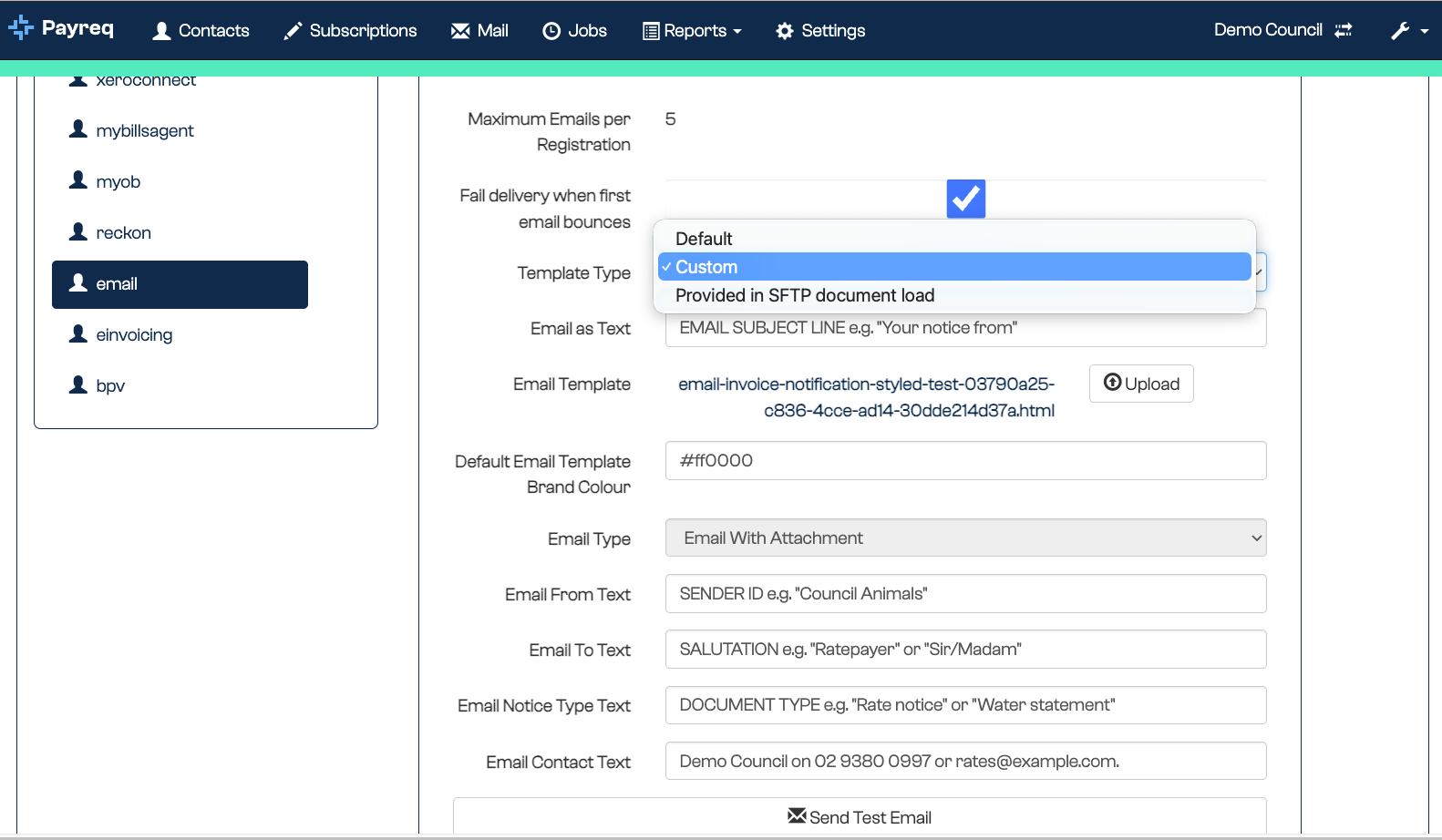
For the account settings that select the template and control its standard wording, see Delivery Channel Settings.
Before you start
Payreq supports two ways of selecting email HTML:
- A stored template selected in the Email Delivery Channel Settings.
- An HTML file supplied for an individual bill in an SFTP document load.
Do not assume the two methods support identical substitutions. Field availability can depend on the Template Type, sender account, account configuration and bill-load mapping. Confirm these details before using a field in production.
Delivery Channel Settings apply to one Payreq Delivery account. If your organisation has more than one Delivery account, confirm the settings for each account separately. If you're unsure which settings or mappings apply, contact Payreq Support for assistance.
Template syntax
Payreq templates use Mustache-style fields and sections. Field names, punctuation and question marks must match exactly.
| Syntax | Purpose | Example |
|---|---|---|
{{field}} |
Insert an escaped value | {{email-to}} |
{{&field}} |
Insert a formatted or unescaped value | {{&amount}} |
{{#field}}...{{/field}} |
Show a section when the value is present or true | {{#haslogo}}...{{/haslogo}} |
{{^field}}...{{/field}} |
Show a section when the value is absent or false | {{^no-payment-override}}...{{/no-payment-override}} |
{{parent.child}} |
Insert or test a nested value | {{&auto-payment.debit-limit}} |
Use the ampersand only where the field is documented with one. It allows unescaped output, so it should not be added to text fields by default.
Where template values come from
Template values fall into several practical groups:
| Source | Examples | What changes the output |
|---|---|---|
| Email channel settings | Email from text, Email to text, notice type, contact text and brand colour | A change to the account's Email channel configuration |
| Account configuration | Biller name and logo | A change to the Payreq Delivery account |
| Bill or load data | Amount, due date, bill message and bill references | The data supplied for the bill or mapped during onboarding |
| Recipient and payment data | Auto-payment status and debit limit | The recipient's Subscription and payment arrangement |
| System-generated values | Payreq destinations, application links and hosted bill links | Payreq processing and the available delivery actions |
| Static HTML | Fixed wording, contact details, images and external links | An edit to the stored or supplied HTML |
An account-level value is not necessarily hard-coded. For example, {{email-from}} is inserted when the email is generated, but its source is the account's Email channel configuration.
Email channel fields
The following template fields map to Email Delivery Channel Settings:
| Delivery Channel setting | Template field | Use |
|---|---|---|
| Default Email Template Brand Colour | {{default-email-template-brand-colour}} |
Inserts the configured colour, normally for inline CSS such as a border or background colour |
| Email from Text | {{email-from}} |
Inserts sender wording in the email body |
| Email to Text | {{email-to}} |
Inserts the configured recipient wording or greeting |
| Email Notice Type Text | {{email-notice-type}} |
Inserts the configured notice-type wording |
| Email Contact Text | {{email-contact}} |
Inserts the configured contact wording |
Email as Text and the email subject
Email as Text is used when Payreq builds the default email subject. A common subject pattern is:
[Email Notice Type Text] [Email as Text] [biller name]
For example, if the values are Rates notice, from and Riverstone City Council, the resulting subject is:
Rates notice from Riverstone City Council
Email as Text is a subject setting and should not be treated as an email-body field. Confirm the account configuration with Payreq Support if different subject or body behaviour is required.
The following are also separate:
{{email-from}}, which inserts configured wording in the body;- the display name and address in the email's From header; and
- the Reply-To address.
Do not use Email from Text to try to change the email header sender.
Account and branding fields
| Field or condition | Use |
|---|---|
{{biller-name}} |
Inserts the Payreq account or biller display name |
{{#haslogo}}...{{/haslogo}} |
Shows a section when a logo is available for the account |
{{logo-bytes}} |
Inserts the configured logo source, generally as a hosted image URL despite the field name |
Use haslogo around the complete image element so an empty image is not left behind when no logo is available:
{{#haslogo}}
  <img src="{{logo-bytes}}" alt="{{biller-name}} logo">
{{/haslogo}}
Bill and customer fields
| Field | Use and source |
|---|---|
{{&amount}} |
Inserts the formatted Amount Due. It is not the total charges or previous balance. Confirmed 19 August 2026 |
{{due-date}} |
Inserts the bill due date in display format, DD/MM/YYYY. Confirmed 19 August 2026 |
{{bill-message}} |
Inserts a message composed by Payreq from the notice and bill context. Confirmed 19 August 2026 as a system-composed sentence rather than free text the sender supplies |
{{biller-customer-number}} |
Inserts the customer number available to the template. In the tested load it returned the Contact ID; confirm its source against the sender's mapping before use, since this can vary by account |
{{customer-reference}} |
Inserts an additional customer or account reference where the sender supplies and maps one. Confirmed 19 August 2026 as populated from the customer reference supplied in the bill row |
{{bill-ref-1}}, {{bill-ref-2}}, and so on |
Insert numbered bill references defined by the sender's integration and onboarding mapping |
Numbered bill references
The numbered bill-ref fields read from the reference fields of the bill record in order, so bill-ref-1 takes the first, bill-ref-2 the second, and so on. What each one contains is set by your own integration mapping, so confirm the meanings for your account rather than assuming another sender's arrangement applies. Positions your integration does not populate render as empty.
Before using a numbered reference:
- Check the sender's interface and onboarding mapping.
- Give each source field a unique test value.
- Generate a test email using the intended account and template type.
- Confirm the received HTML contains the expected value in the expected position.
Do not copy the reference meanings from another sender's template.
Conditions for payment and amount content
Conditional fields let one template cover different bill and payment states.
| Condition | When the positive section is shown |
|---|---|
no-payment-override |
The bill is explicitly marked as not requiring payment |
amount-zero-or-below? |
Amount Due is zero or negative |
pay-now-button? |
Payreq calculates that a pay-now action is available |
auto-payment? |
The recipient has an applicable auto-payment arrangement |
auto-payment.below-limit? |
The payment amount is within the recipient's auto-payment debit limit |
auto-payment.min-amount-payable? |
Payreq determines that the minimum-amount auto-payment branch applies |
haslink |
A hosted bill link is available |
no-payment-override and amount-zero-or-below? test different things. A bill can have a zero or negative Amount Due while still being marked as requiring payment. Test them separately when the wording or actions depend on both states.
pay-now-button? is a calculated result. It can be false because payment is not required or because an auto-payment arrangement is already active. Do not treat it as a direct copy of the bill's Payment Required value.
Positive and inverted sections
This example shows different wording according to the explicit payment requirement:
{{^no-payment-override}}
  <p>Amount due: {{&amount}}</p>
  <p>Due date: {{due-date}}</p>
{{/no-payment-override}}

{{#no-payment-override}}
  <p>No payment is required.</p>
{{/no-payment-override}}
Opening and closing names must match exactly. For example, open and close pay-now-button? with the question mark included in both tags.
Auto-payment values
These fields can be used inside an auto-payment? section:
| Field or condition | Use |
|---|---|
{{#auto-payment.below-limit?}}...{{/auto-payment.below-limit?}} |
Shows the within-limit branch |
{{^auto-payment.below-limit?}}...{{/auto-payment.below-limit?}} |
Shows the over-limit branch |
{{#auto-payment.min-amount-payable?}}...{{/auto-payment.min-amount-payable?}} |
Shows the minimum-amount branch when applicable |
{{&auto-payment.debit-limit}} |
Inserts the recipient's formatted debit limit |
The behaviour of auto-payment.min-amount-payable? depends on the sender's payment configuration. Have Payreq Support confirm the applicable rule before adding wording that depends on this condition.
Links generated by Payreq
| Field or condition | Use |
|---|---|
{{payreq-mybills-link}} |
Inserts the Payreq destination used to manage delivered documents |
{{ios-link}} |
Inserts the Payreq iOS application link |
{{android-link}} |
Inserts the Payreq Android application link |
{{#haslink}}...{{/haslink}} |
Shows content when a hosted bill link is available |
{{bill-link}} |
Inserts the hosted bill link |
Use haslink around the whole link or call-to-action section. This prevents an empty href from appearing where a bill link is unavailable.
Static HTML content
Payreq does not replace ordinary HTML. Wording and resources without template fields stay the same for every email that uses that template.
Review static content separately, including:
- organisation contact details;
- payment and policy wording;
- external website links;
- hosted image and application-badge URLs;
- units appended to values, such as
kL; and - legal footnotes and accessibility text.
JavaScript should not be used to calculate or replace email content. Most email clients block or remove scripts. Use template fields, conditional sections and email-safe HTML instead.
Use complete HTTPS URLs for links and hosted images. Use inline CSS for important presentation because email clients provide limited and inconsistent support for stylesheets.
Supplying HTML in an SFTP document load
To provide an HTML file for each bill, the Email channel Template Type must be set to Provided in SFTP document load. Each HTML filename must match the file named in that bill's Email Delivery Details field, and the HTML file must be included in the bill package.
The Email Delivery Details value is a JSON map keyed by language. For example:
{
  "en": {
    "subject": "Your rates notice is available",
    "reply-to": "rates@example.com",
    "html-file": "invoice_INV10432.html",
    "add-attachment": true
  }
}
| Property | Purpose |
|---|---|
subject |
Sets the subject for that email |
reply-to |
Sets the Reply-To address |
html-file |
Identifies the HTML file included in the bill package |
add-attachment |
Controls whether the bill is attached to the email |
Payreq determines the recipient from the customer's registration. Refer to the current Payreq Interface Specification for the complete field format, language rules, filename requirements and sender behaviour.
Any images or other resources referenced by load-supplied HTML must be hosted by the mailhouse. Do not reference local files from the HTML package unless the Interface Specification explicitly supports them.
Testing on 19 August 2026 confirmed that the five Email Delivery Channel Settings fields, the brand colour, and the bill and reference fields all resolve the same way when the HTML is supplied in the bill package as when it is stored against the account. Unresolved template syntax did not appear in the received email, and the supplied PDF was attached, although Payreq replaces the supplied filename with a generated one.
Fields that need sender-specific confirmation
Confirm these before relying on them in a new production template:
| Field | What to confirm |
|---|---|
{{bill-link}} and haslink |
Which delivery flow creates the hosted link |
auto-payment.below-limit? |
Both the within-limit and over-limit branches |
auto-payment.min-amount-payable? |
The rule used for the sender's payment configuration |
min-amount-zero-or-below? |
Support and exact behaviour for templates that use minimum-amount logic |
An empty result does not prove that a field is unsupported. It can mean the source field was not populated, the sender mapping does not expose it, the field is unavailable in that template path, or the field name is incorrect.
Checking a template before production
Use synthetic values and controlled internal recipients. For each test:
- Record the Delivery account, Email channel settings, Template Type, template name, job or load ID and test recipient.
- Give each source field a distinct value so its origin is clear.
- Include bills that exercise the positive and inverted branches you use.
- Save the received
.emlor raw message source, not only a screenshot. - Check the subject, From display, Reply-To address, visible body, raw HTML and link destinations separately.
- Test in the email clients your recipients commonly use.
- Restore any account settings changed for the test.
- Send a final control email before using the template for a live bill run.
Contact Payreq Support if a field's source, mapping or conditional rule cannot be confirmed safely in a test account.
Related articles
Was this article helpful?
That’s Great!
Thank you for your feedback
Sorry! We couldn't be helpful
Thank you for your feedback
Feedback sent
We appreciate your effort and will try to fix the article