The main way to send documents to Payreq Delivery yourself is to upload a PDF through the console. This article covers preparing your PDF, the upload options, and what happens after you upload. (For automated, high-volume uploads, SFTP is covered separately, see the end of this article.)
Preparing your PDF
Upload your documents as a single merged PDF containing all the documents for the job. Payreq reads that PDF using a template set up for your account during onboarding, which:
- Uses a split indicator to separate the individual documents within the merged PDF.
- Identifies the key information Payreq needs to read from each document, such as the details used to match it to a Contact.
If the layout of your documents changes, contact Payreq Support so your template can be updated, otherwise Payreq may not read the new layout correctly.
Your PDF should also be A4, flattened, and not password protected.
Uploading via the console
- Log in to Payreq Delivery and go to the Upload tab (if enabled). A pop-up window opens.
- Select Choose files and select your merged PDF.
- Set the upload options (see below).
- Select Upload to submit the documents for processing.
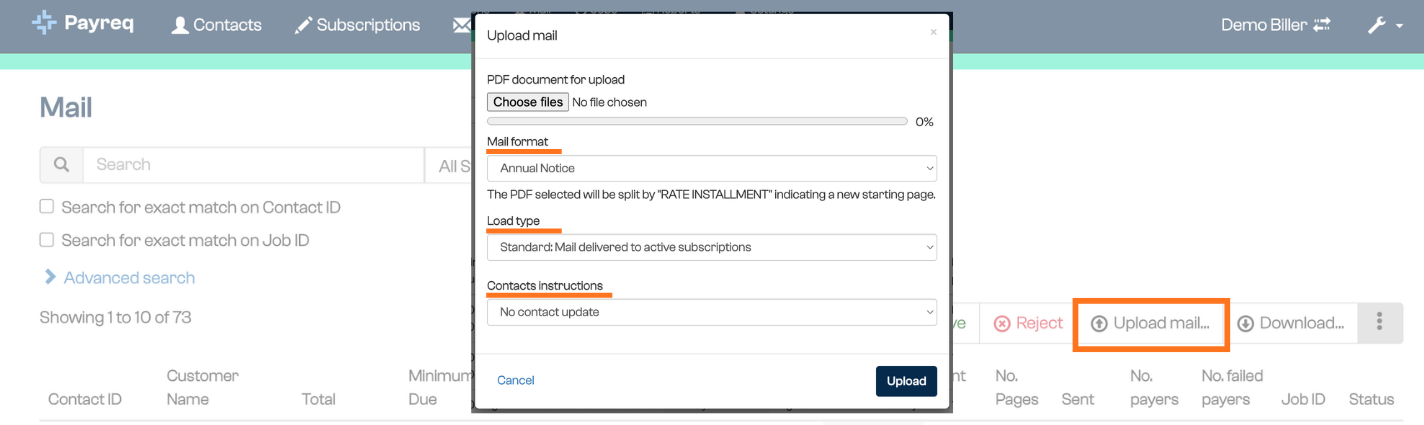
Upload options
Depending on your account configuration, up to three options are available:
- Mail format: the document type, and the underlying template used to read it, for example "Instalment Notice".
- Load type: Standard, Archive, or Historical. For what each one does, see Bill load types: Standard, Archive and Historical.
- Contacts instructions: how the upload should treat your Contacts. The options are:
- Update Contacts
- Replace Contacts
- Do not update Contacts
- Update Contacts only, do not send Mail
- Replace Contacts only, do not send Mail
What happens after upload
Payreq reads each document in the PDF using your template, applies your Contacts instructions, and matches each document to a Contact:
- Records that have an active Subscription are prepared for digital delivery. If the Review Mail Before Sending step is enabled, they appear as Awaiting Review; otherwise they're sent. See Understanding Mail statuses.
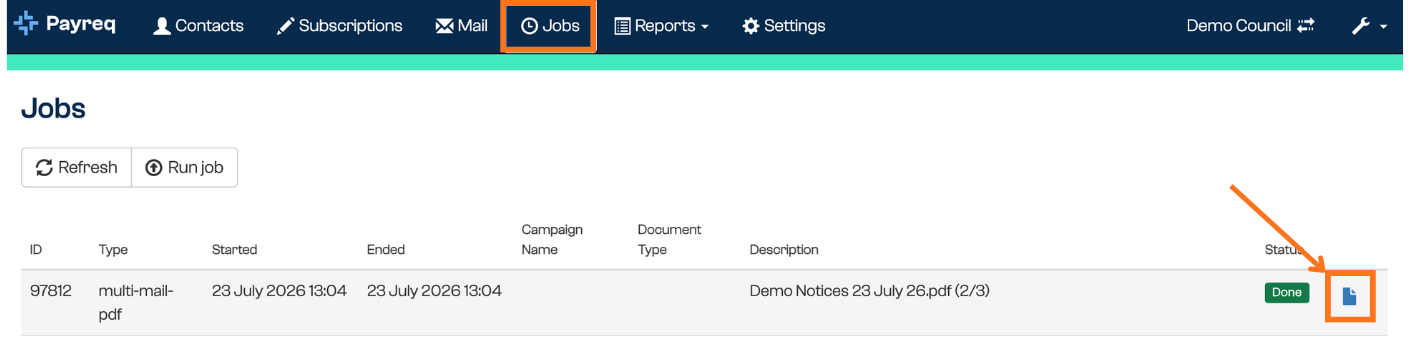
- Records with no active Subscription are omitted from the digital job through the console upload path. They are not flagged as undeliverable. Where a result-download action is available in the Jobs tab, use it to retrieve the non-digital documents, for example to print and post them yourself. This is confirmed for console uploads specifically; the Payreq Interface Specification states that an unmatched Standard bill-file record submitted via SFTP is flagged as an Error instead, so do not assume the two paths behave identically.
Example
Say you have a file of 100 documents to send:
- You upload all 100 as a Standard job, with Update Contacts selected.
- All your Contacts are updated, but only 40 of the records have an active Subscription.
- Those 40 go to Awaiting Review for digital delivery, while the remaining 60 are omitted from the digital job.
- Where a result-download action is available, you retrieve the 60 non-digital documents from the Jobs tab to print and post. Otherwise, arrange their handling from your source documents.
If you use the Archive load type, you can later search by Archived status and the job ID to download those documents for printing and posting in house.
Uploading via SFTP
For automated, high-volume uploads, typically run by a mailhouse, you can send Mail to Payreq via SFTP instead of uploading through the console. See Uploading Mail via SFTP for how that process works.
Was this article helpful?
That’s Great!
Thank you for your feedback
Sorry! We couldn't be helpful
Thank you for your feedback
Feedback sent
We appreciate your effort and will try to fix the article