The Mail page gives you a detailed view of every Mail item, digital and paper, along with its delivery outcome and status. This article covers how to find the page, search and filter it, read the table, and take action.
Opening the Mail page
- Log in to your Payreq Delivery account at go.payreq.com.
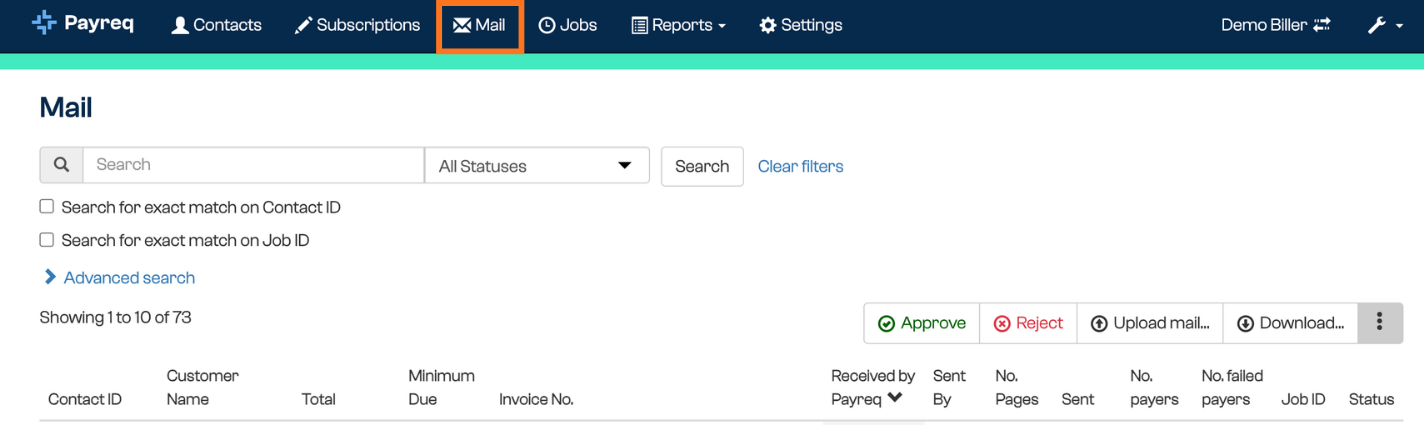
- Select Mail in the top menu.
The Mail page opens, where you can filter, review, and act on the documents you've sent to your customers.
Search and filters
At the top of the page you'll find several ways to narrow down what you see:
- Search bar: enter keywords, invoice numbers, or names.
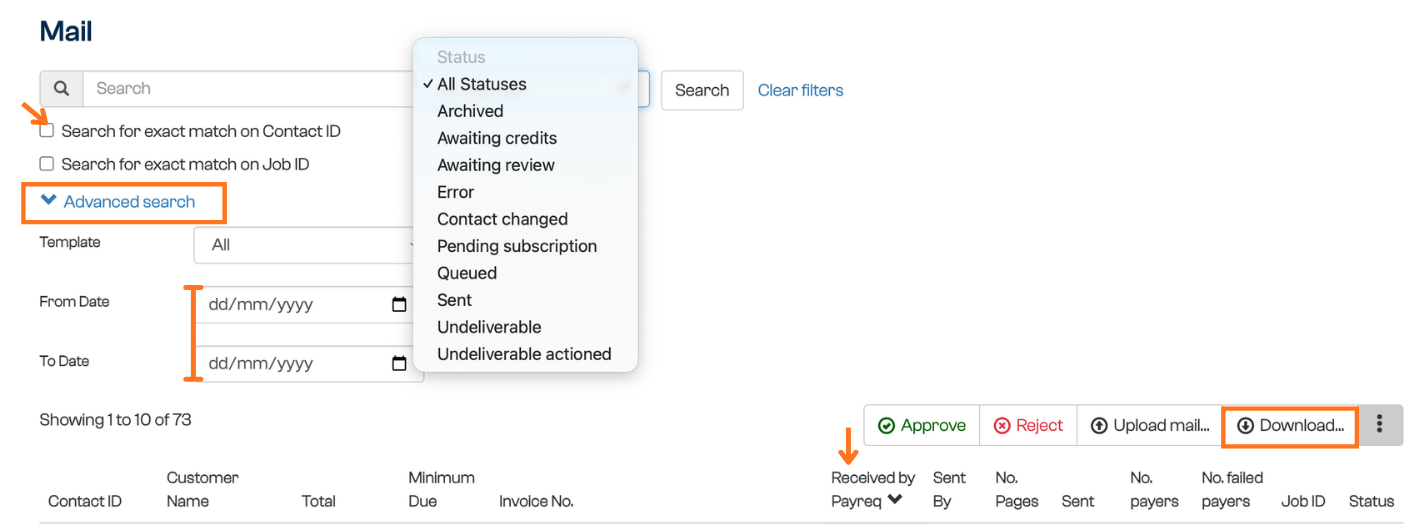
- All Statuses dropdown: filter by Mail status, for example Sent, Pending Subscription, or Undeliverable.
- Exact match toggles: use these when searching by Contact ID or Job ID.
- Advanced search: expand this to apply more detailed filters.
The Mail table
Each row in the table is a Mail item. The columns are:
| Column | Description |
|---|---|
| Contact ID | Unique ID for the recipient's Contact record |
| Customer Name | Name of the document recipient |
| Total | Total amount payable on the document |
| Minimum Due | Due date for payment of the minimum amount |
| Invoice No. | Invoice or bill reference |
| Received by Payreq | Date Payreq received the document for delivery |
| Sent By | Delivery method (Digital or Paper) |
| No. Pages | Number of pages sent |
| Sent | Date the document was sent |
| No. Payers | Number of recipients (useful for multi-party bills) |
| No. Failed Payers | Number of recipients delivery failed for |
| Job ID | Identifier for the Mail job the item belongs to |
| Status | Current delivery status of the document |
Select any row to open the Mail item and see its full detail. For what each status means, see Understanding Mail statuses.
Actions on the Mail page
Above the table you can:
- Approve: accept documents flagged for manual review before sending.
- Reject: decline a document or mark it as undeliverable.
- Upload mail: manually upload documents for delivery. See Uploading Mail.
- Download: export delivery records. See Downloading Mail items.
Was this article helpful?
That’s Great!
Thank you for your feedback
Sorry! We couldn't be helpful
Thank you for your feedback
Feedback sent
We appreciate your effort and will try to fix the article