You can download your Mail from the Mail page, either as a record of the details or as copies of the documents themselves.
Filter your list first
The Download button downloads all the Mail items currently displayed. If you haven't searched or filtered, it assumes you want every Mail item, which can be a very large job, even to produce a CSV, if you have a lot of Mail. So narrow the list first using search, status, date range, or the other filters. See Navigating the Mail page.
There is also a limit on the number of PDFs you can download at once. If you need more than 10,000, contact Payreq Support.
Choosing what to download
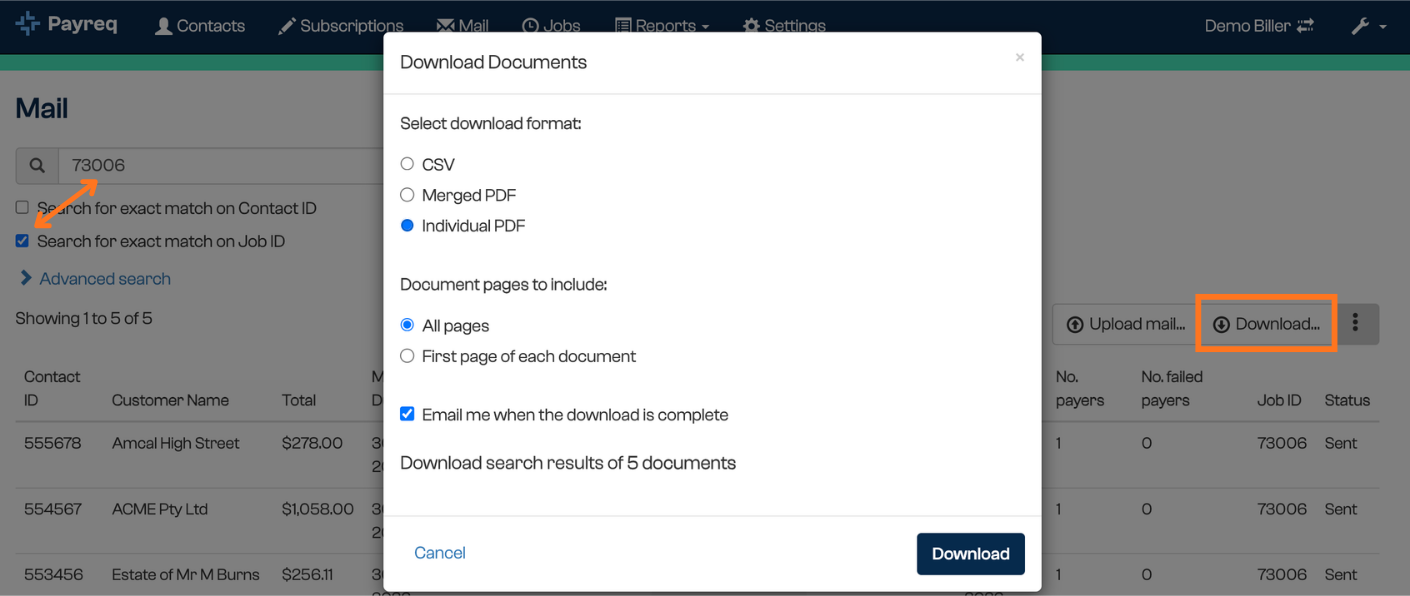
Once you've searched or filtered to the Mail items you want, select Download and choose one of the following:
- A CSV of the Mail details, for reporting, reconciliation, or audit.
- A file of individual PDFs, one per document.
- A single merged PDF, combining the documents into one file.
After choosing Merged PDF or Individual PDF, use Document pages to include to choose All pages or First page of each document. The page-selection controls are not shown for CSV.
Related
This downloads your Mail (the documents you've sent). To download Subscription information instead, see Downloading Subscriptions.
Was this article helpful?
That’s Great!
Thank you for your feedback
Sorry! We couldn't be helpful
Thank you for your feedback
Feedback sent
We appreciate your effort and will try to fix the article