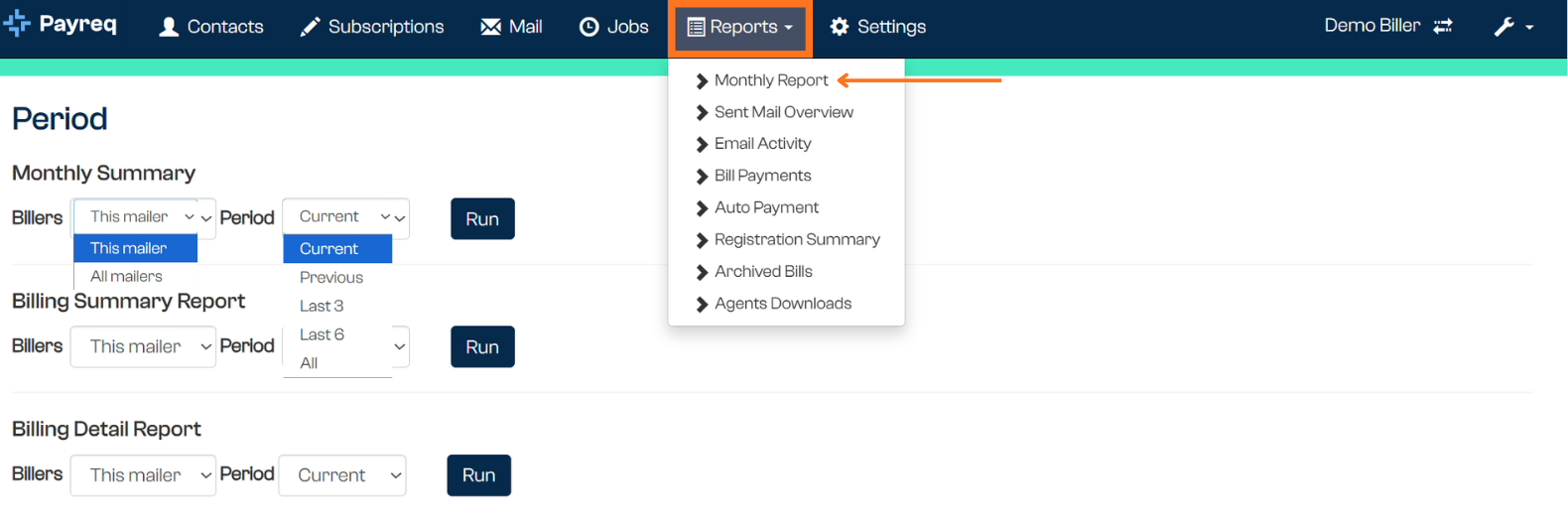
Under Reports > Monthly Report, Payreq Delivery gives you three related reports covering the same underlying activity at different levels of detail: Monthly Summary, Billing Summary Report, and Billing Detail Report. Each has its own Billers filter and Period selector, with a separate Run button.
Running a report
For each of the three reports:
- Go to Reports > Monthly Report.
- Set Billers (defaults to "This mailer").
- Set Period: Current, Previous, Last 3, Last 6, or All.
- Select Run.
Monthly Summary
The most pared-back of the three — a high-level snapshot of account activity for the period, one row per Biller.
Confirmed columns: Name, BPV Mailer ID, Contacts, a set of registration/deregistration activity figures, and Mail — the total number of documents sent for the period, the figure most people are actually looking for.
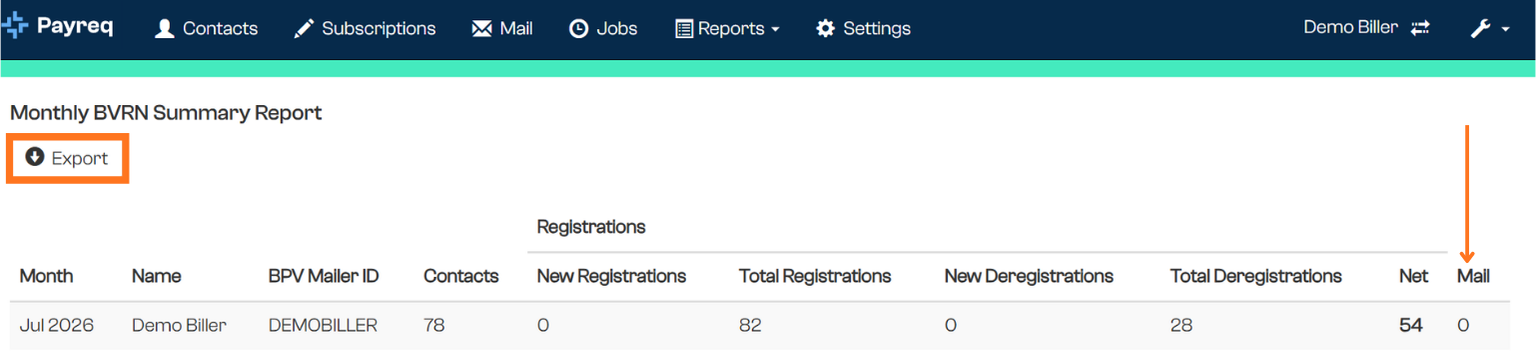
The registration/deregistration figures are five separate columns, grouped under a Registrations heading:
| Column | What it shows |
|---|---|
| New Registrations | New Subscriptions created in the period |
| Total Registrations | Total active Subscriptions as at the period |
| New Deregistrations | Subscriptions deregistered during the period |
| Total Deregistrations | Total deregistered Subscriptions as at the period |
| Net | New Registrations minus New Deregistrations for the period |
Billing Summary Report
A more detailed breakdown, one row per Biller + Bill Feed + Channel combination for the period, rather than one row per Biller. This is the report to use when you need to know how many documents went out through each specific channel.
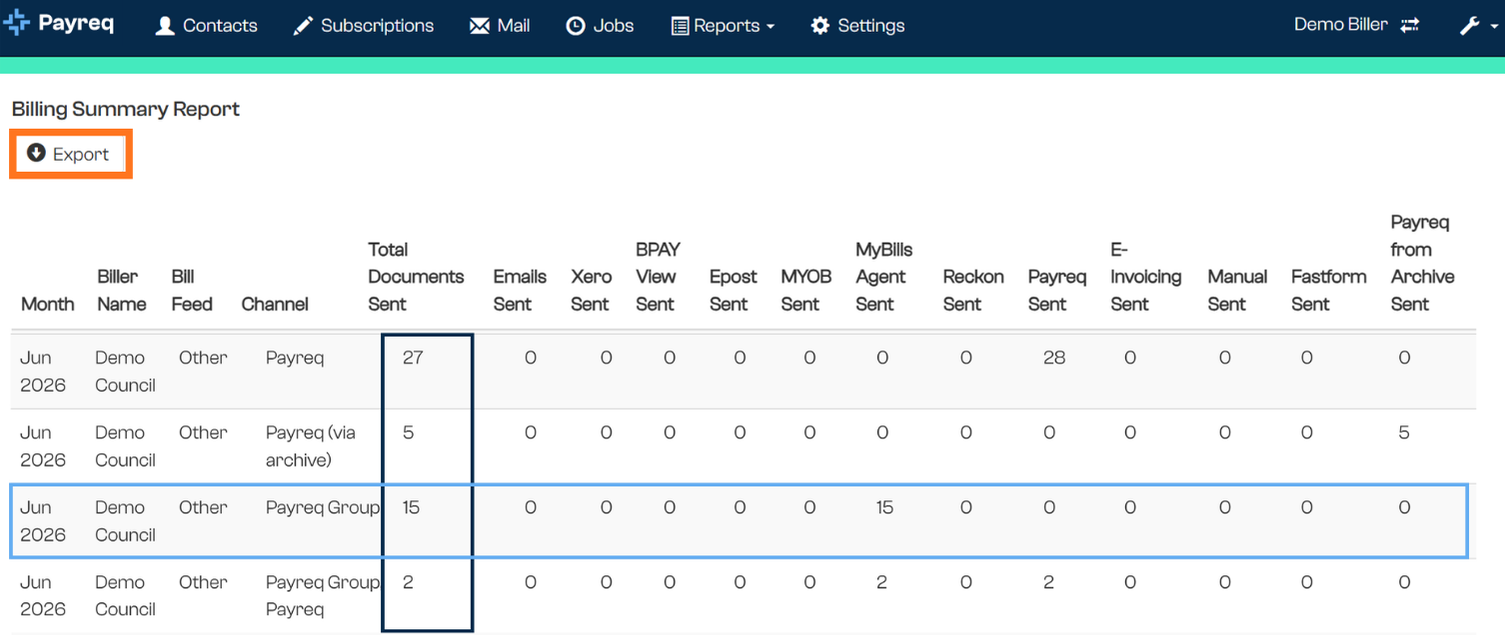
Report columns:
| Column | What it shows |
|---|---|
| Date | The period the row covers |
| Biller Code | Your organisation's biller code |
| Biller Name | Your organisation's name |
| Bill Feed | The bill feed the documents belong to |
| Channel | The delivery channel combination for this row (see below) |
| Total Documents Sent | How many documents were sent via this channel combination |
| Email Sent, Xero Sent, BPAY View Sent, Epost Sent, MYOB Sent, Payreq MyBills Agent Sent, Reckon Sent, Payreq Sent, E-Invoicing Sent, Manual Sent, Fastform Sent, Payreq from Archive Sent | Per-channel recipient counts — see "Why a row can have multiple non-zero channel columns" below |
Why a row can have multiple non-zero channel columns. A single document can be delivered to more than one recipient across different channels — for example, a bill sent to both an email address and a BPAY View registration. The Channel column shows the combination (e.g. "BPAY View, Email"), Total Documents Sent is the document count for that combination, and each per-channel "Sent" column shows how many recipients received it via that specific channel. These can add up to more than Total Documents Sent when a document went to multiple recipients.
A note on channel naming. "Payreq from Archive Sent" corresponds to documents delivered via Archive/History rather than a fresh send — see Archived Bills. The channel value "Payreq (via archive)" appears in the Billing Detail Report for the same reason.
Epost Sent relates to a Canadian delivery channel that is no longer in service. The column remains in the report, and will show zero for Australian accounts.
Billing Detail Report
The same idea as the Billing Summary Report, but at individual document level rather than aggregated — one row per bill, not per channel combination.
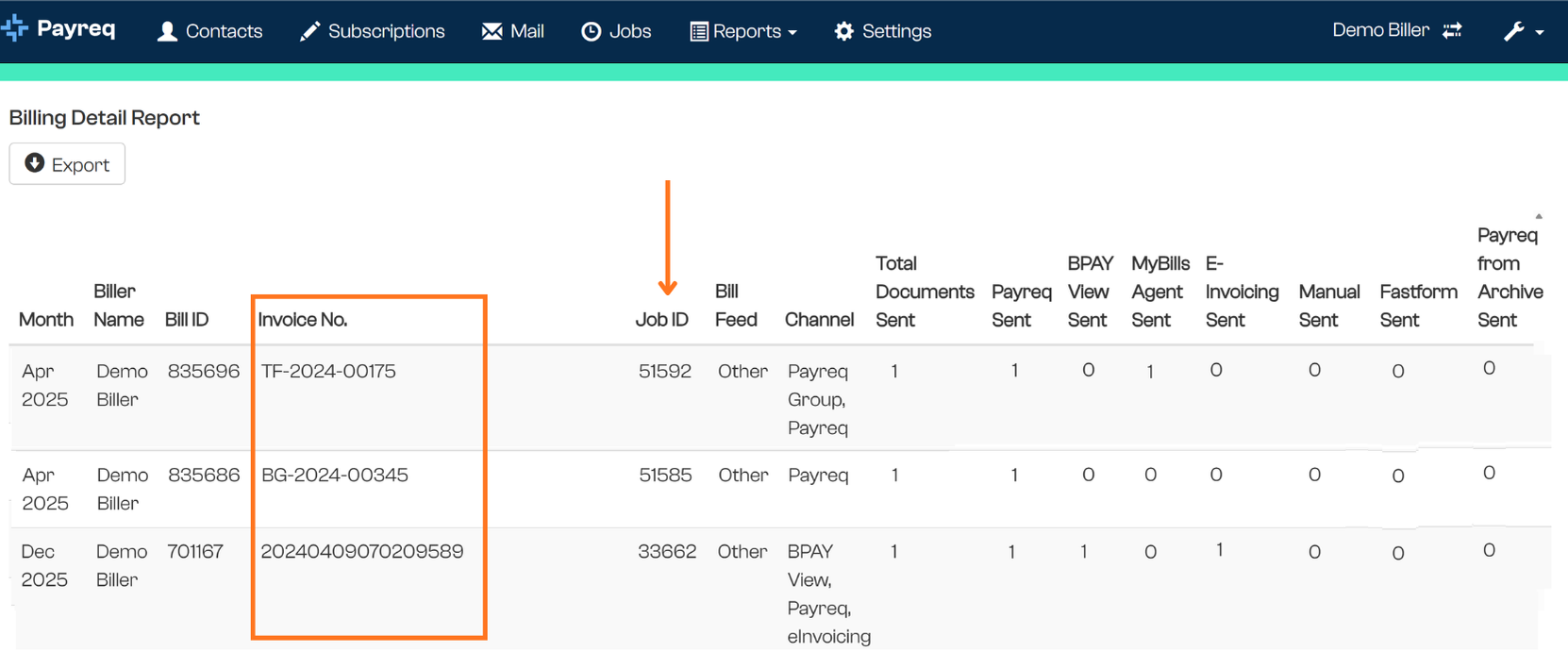
Confirmed columns: everything in the Billing Summary Report, plus Bill ID, Invoice Number, and Job ID to identify the specific document and the Job it was part of (see What are Jobs?). Because each row is a single document, Total Documents Sent is always 1.
Use this report when you need to trace a specific bill or reconcile individual invoice numbers, rather than just totals by channel.
Why figures can look different across reports or periods
Payreq Delivery reflects the current, live state of your account at any given moment. Many reporting needs, by contrast, expect a fixed, closed set of records for a period that can be reconciled once and doesn't change. A few places this can show up:
- A document delivered via Archive/History can appear as "Sent" (channel "Payreq (via archive)") without being a fresh send that period, and may be viewed by the customer in a later reporting period than when it was originally archived.
- Different figures across the console can use different dates — submission date, approval date, processing date, or the date a customer viewed something — and each answers a different question.
If a figure looks wrong or doesn't reconcile the way you expect, this is usually why. Contact Payreq Support if you can't account for a discrepancy after checking which date and channel definition a report is using.
Related articles
Was this article helpful?
That’s Great!
Thank you for your feedback
Sorry! We couldn't be helpful
Thank you for your feedback
Feedback sent
We appreciate your effort and will try to fix the article