Payreq Delivery gives you a few ways to see payment activity: a report of bill payments, a view of active auto payments, and payment details against individual bills. This article covers where to look and what the statuses mean.
Bill Payments Report
The Bill Payments Report shows the bill payments made through Payreq for your account. It's available in the console and can be downloaded as a CSV for your own records or reconciliation.
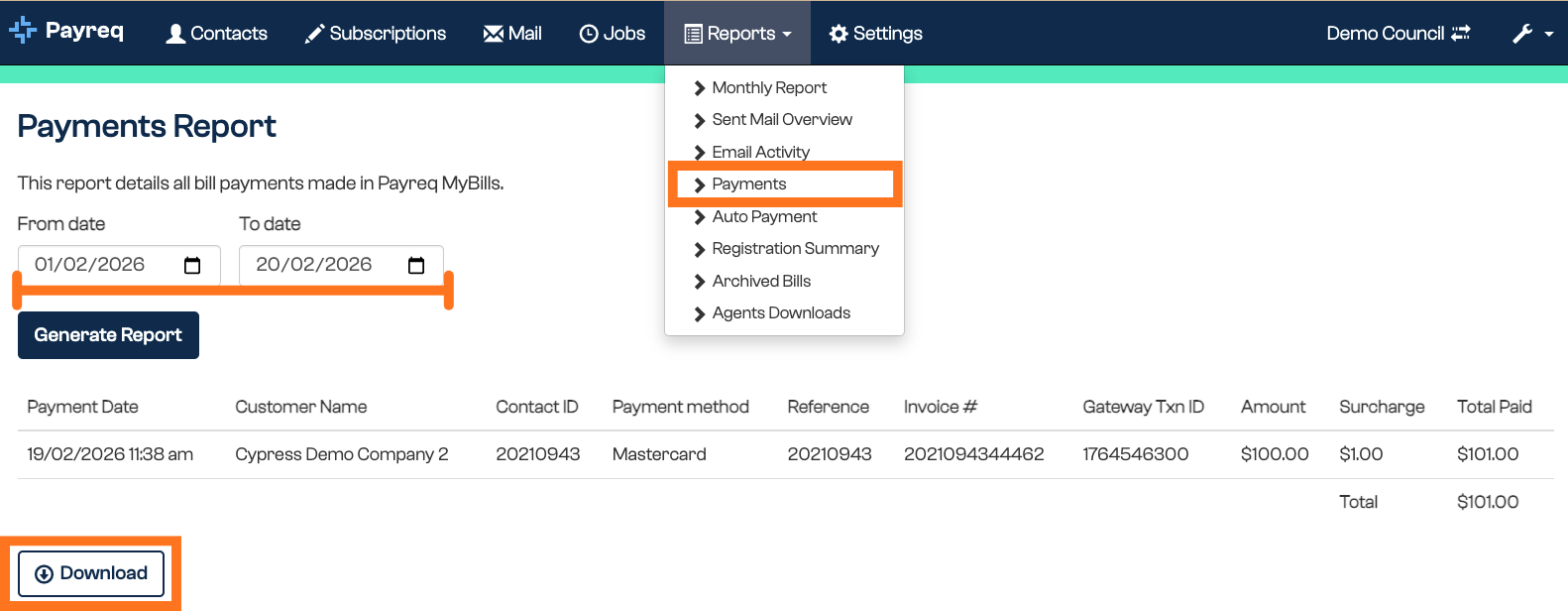
The CSV export includes:
| Column | What it shows |
|---|---|
| Payment Date | Date and time the payment was made |
| Customer Name | The paying customer's name |
| Contact ID | The customer's Contact ID in Payreq Delivery |
| Payment Method | The card type used for the payment (e.g. Mastercard, Visa) |
| Reference | An independent payment reference captured for the transaction, separate from the Contact ID |
| Invoice No | The invoice/bill number the payment applies to |
| Gateway Transaction ID | The transaction ID returned by the payment gateway |
| Base Amount | The bill amount paid, before any surcharge |
| Surcharge | Any card surcharge applied |
| Total Paid | Base Amount plus Surcharge — the total amount charged to the customer |
Auto payment reporting
The auto payment report is a snapshot of the auto payments currently set up across your account. Because auto payments are a customer self-service feature, this shows you what's in place rather than something you configure.
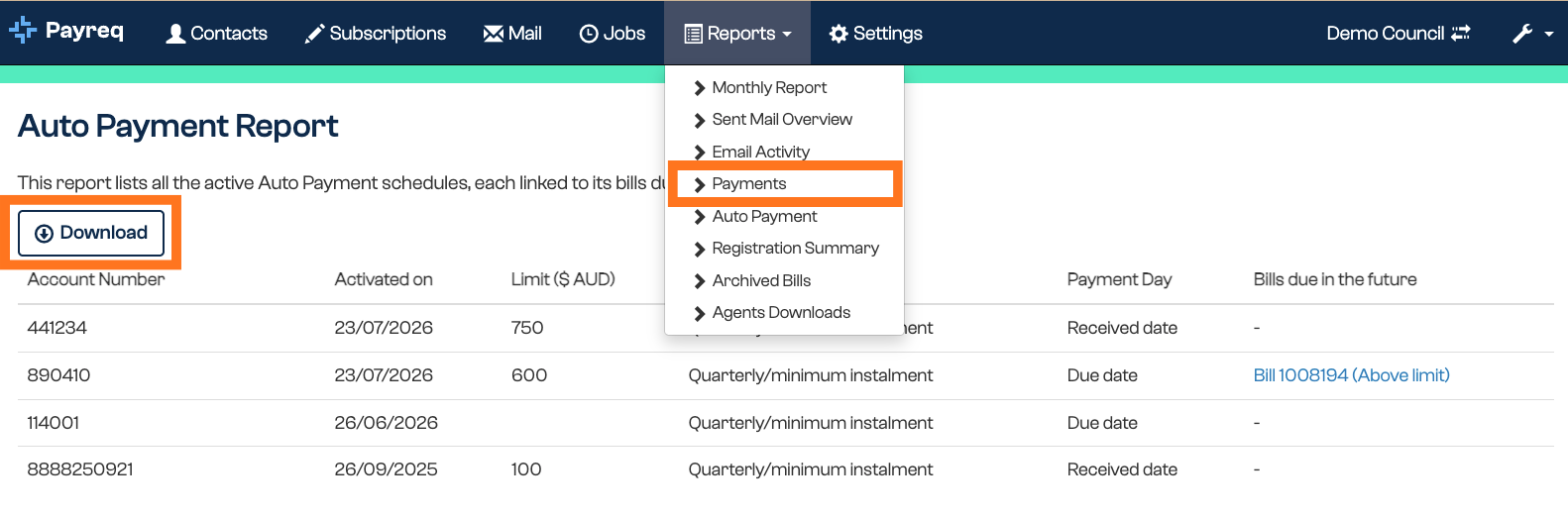
The CSV export includes:
| Column | What it shows |
|---|---|
| Account Number | The customer's account/contact number the auto payment is set up against |
| Activated on | Date and time the customer set up the auto payment |
| Limit ($ AUD) | The maximum amount the customer has authorised for a single auto payment. Blank simply means the customer hasn't set one — the limit is an optional safeguard, not a requirement |
| Amount payable | Whether the customer pays the minimum amount due (min) or the full amount (total) each cycle |
| Payment Day | Whether the payment runs on the bill's due date (due-date) or the date the bill was received (received-date) |
| Bills due in the future | The next upcoming bill scheduled for auto payment, or "-" if none; flagged "(Above limit)" if that bill exceeds the customer's set limit |
Auto payment statuses
For an individual bill, the auto payment status tells you whether an automatic payment is expected. You'll see it on the Mail detail view. There are four statuses:
| Status | What it means | What to do |
|---|---|---|
| Scheduled | The bill meets the auto payment rules and is expected to be paid automatically at the scheduled time. | Usually nothing, unless the customer wants to change their own auto payment setup. |
| Above limit set by payer | The bill amount is higher than the limit the customer set for auto payments, so it won't be paid automatically unless they raise the limit in time. | Ask the customer to update their limit or pay manually. You can't change their limit for them. |
| Failed payment | An automatic payment was attempted but didn't succeed. | The customer receives a failure email and may need to pay manually or update their card. Escalate to Payreq Support if the reason is unclear or disputed. |
| No payment scheduled | No auto payment is currently scheduled for that bill, for example where no bill has been issued since the customer set up their auto payment. | Check whether the bill meets the rules. If it looks eligible but still isn't scheduled, escalate to Payreq Support. |
Payment details on a bill
You can also see payment information against individual records:
- Invoice or Mail detail view: receipt-style payment details after a bill has been paid, and the auto payment status for that bill.
- Subscription record: a customer's auto payment setup, under Auto payment details, including their selection and the next bill scheduled for auto payment.
When auto payments run
Auto payments process at a set time depending on how the customer scheduled them:
- Payments scheduled for the due date process at approximately 8:00am AEST.
- Payments scheduled for the received date process at approximately 10:30pm AEST on the day the bill is delivered.
Where a payment would be above the customer's limit, warning messages may appear in the bill delivery email, and reminder emails may be sent before the scheduled date.
Get notified
You can have Payreq Delivery notify you when an auto payment is created. Set the Auto payment created notification to immediately, hourly, or daily on a per-user basis. See User Notifications.
When to escalate
Handle what you can from the console, and escalate the rest:
- Escalate to Payreq Support if a bill looks eligible for auto payment but shows No payment scheduled, or if a failed payment's reason is unclear or disputed.
- Ask the customer to self-serve where the issue is their card details, payment limit, or auto payment preference, unless Payreq Support has advised otherwise.
To reach Payreq Support, submit a ticket.
Related articles
Was this article helpful?
That’s Great!
Thank you for your feedback
Sorry! We couldn't be helpful
Thank you for your feedback
Feedback sent
We appreciate your effort and will try to fix the article