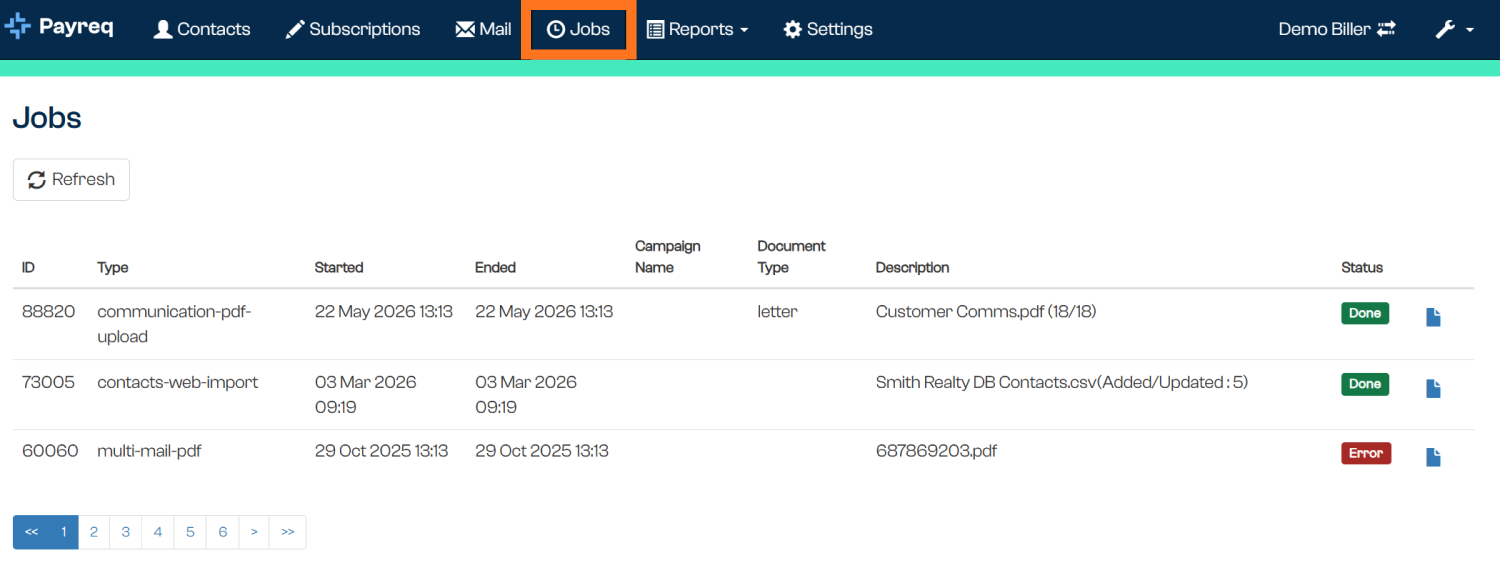
A Job is Payreq Delivery's record of a file you've uploaded and what happened when it was processed, whether that's a batch of documents to send as Mail or an update to your Contacts. The Jobs tab is where you track that processing history. It is separate from the Reports tab, which covers reporting and reconciliation across your account more broadly rather than individual uploads.
What creates a Job
Jobs include file-processing activity such as:
- Uploading Mail (bills or other documents) for delivery. See Uploading Mail.
- Processing a Contacts file to add or update records. See Updating Contacts in the Payreq console.
Other Job types may appear where they are enabled for your account.
What you can see in the Jobs tab
The Jobs table shows:
| Column | What it shows |
|---|---|
| ID | The Job identifier. |
| Type | The type of processing performed. |
| Started | When processing started. |
| Ended | When processing ended. |
| Campaign Name | The campaign name supplied for the Job, where one applies. |
| Document Type | The document type supplied for the Job, where one applies. |
| Description | The filename or processing description recorded for the Job. |
| Status | The current or final processing status. |
| Result or detail action | Opens the available output or Job details. The action is shown as an icon rather than a labelled column. |
Use the page controls below the table to move through the available history. The current Jobs page does not provide a date filter.
A completed Job does not necessarily mean that every submitted document entered digital Mail. Check the Mail results as well as the Job count. Where an output or detail control is available, use it to review the processing result.
If a Job shows an Error status instead of completing, see Understanding Job Statuses and Errors for what that means and how to fix and resubmit the file.
Jobs vs Reports
Jobs and Reports are two separate areas of the console:
- Jobs tracks the processing history of things you've uploaded: a record-by-record account of a specific file.
- Reports covers reporting and reconciliation across your account more broadly, including activity, delivery outcomes and account-level summaries over a period that are not tied to a single upload.
See the other guides in this section for what's available under Reports.
Related articles
Was this article helpful?
That’s Great!
Thank you for your feedback
Sorry! We couldn't be helpful
Thank you for your feedback
Feedback sent
We appreciate your effort and will try to fix the article