You can update your Contacts directly in the Payreq Delivery console, either by importing a CSV file to add or update many Contacts at once, or by adding, updating, and removing individual Contacts.
Before you begin
To add or update Contacts, you need permission to manage Contacts for the relevant Payreq Delivery account. Before making a change:
- Check that you're working in the correct Payreq Delivery account.
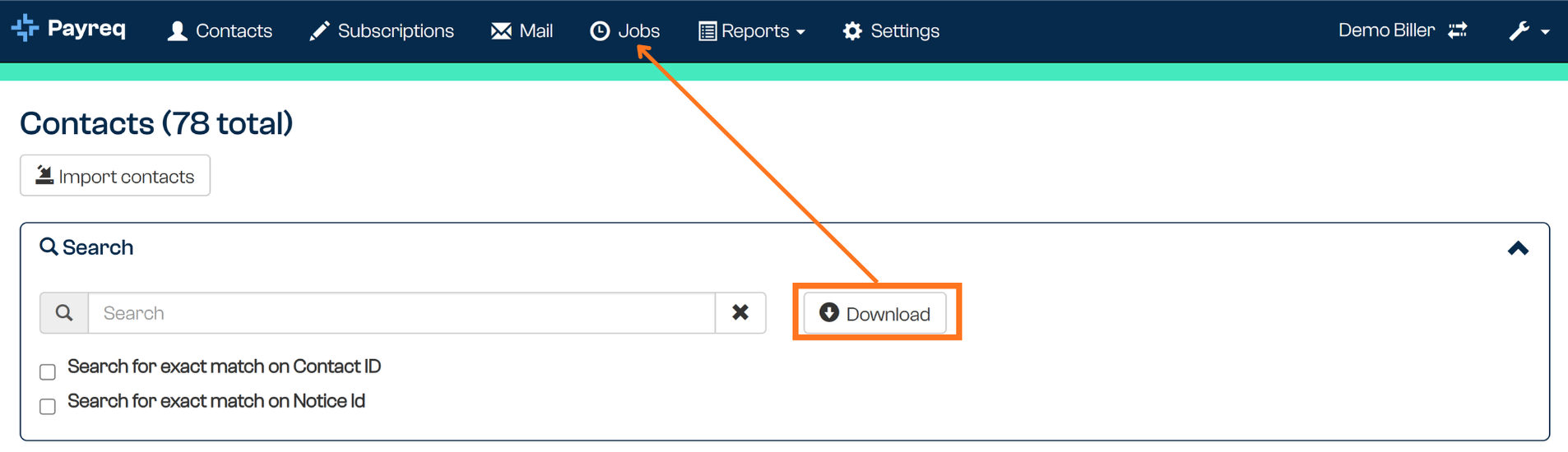
- Download a copy of the current Contact list as a backup. This is logged, and the file is made available from the Jobs tab.
Importing Contacts from a CSV file
A CSV import can add or update multiple Contacts in one step.
CSV format
There are two formatting requirements for the upload:
- Columns and headers must match what's displayed in the Contacts tab.
- A trailer row that counts the total number of records in the file.
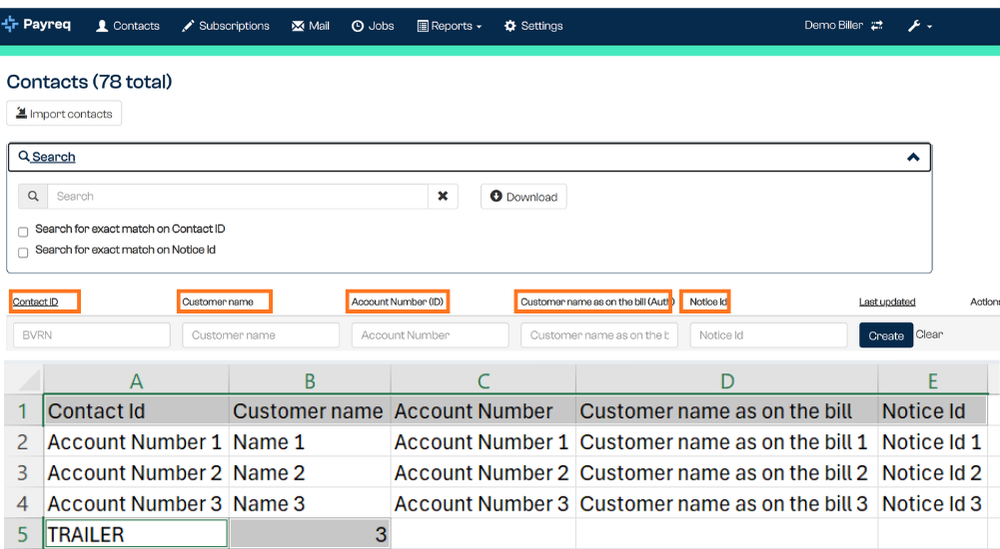
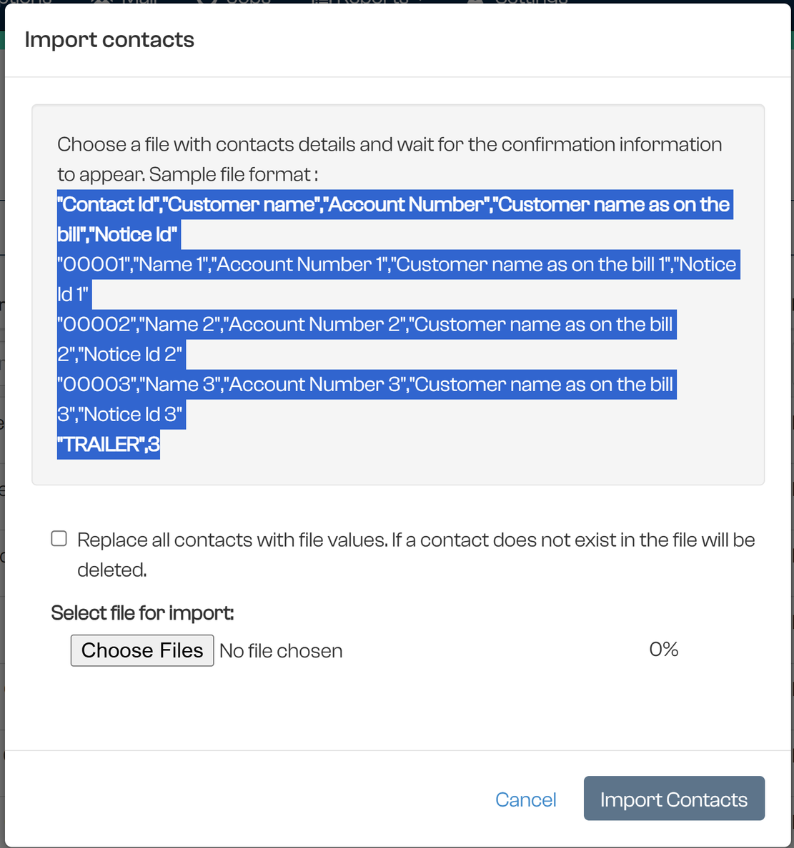
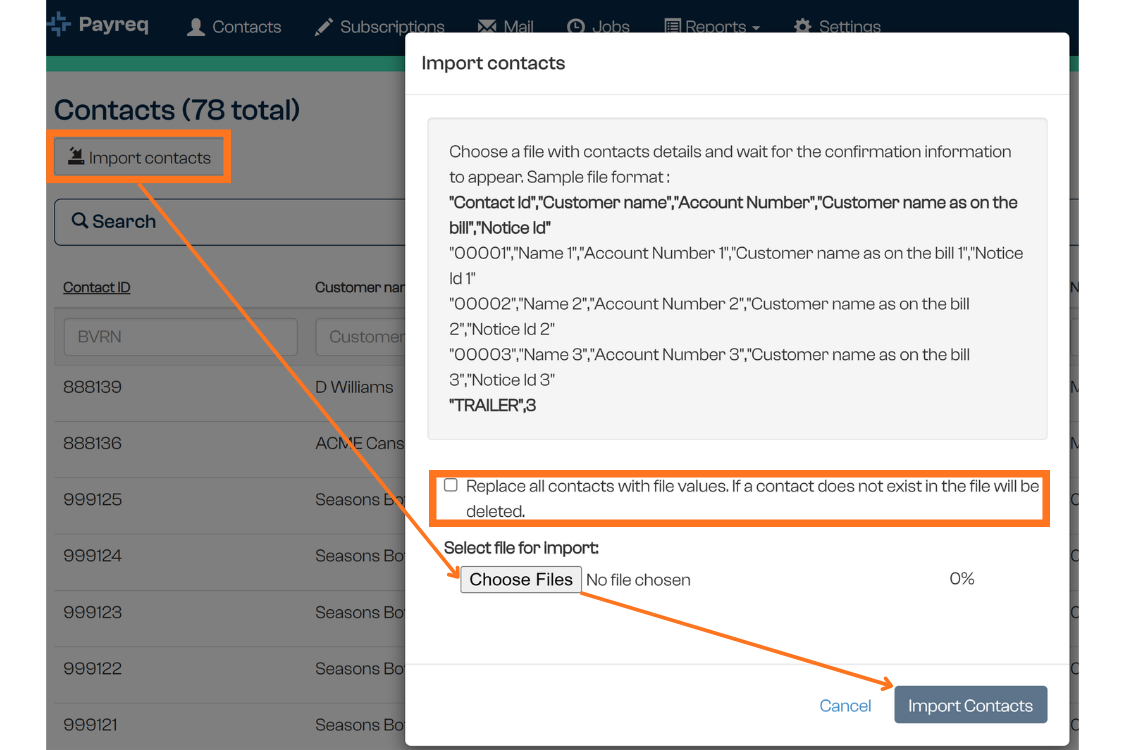
You can retrieve a sample template in your account's specific format from the Import Contacts tool:
- Copy the values from the box and paste them into Excel.
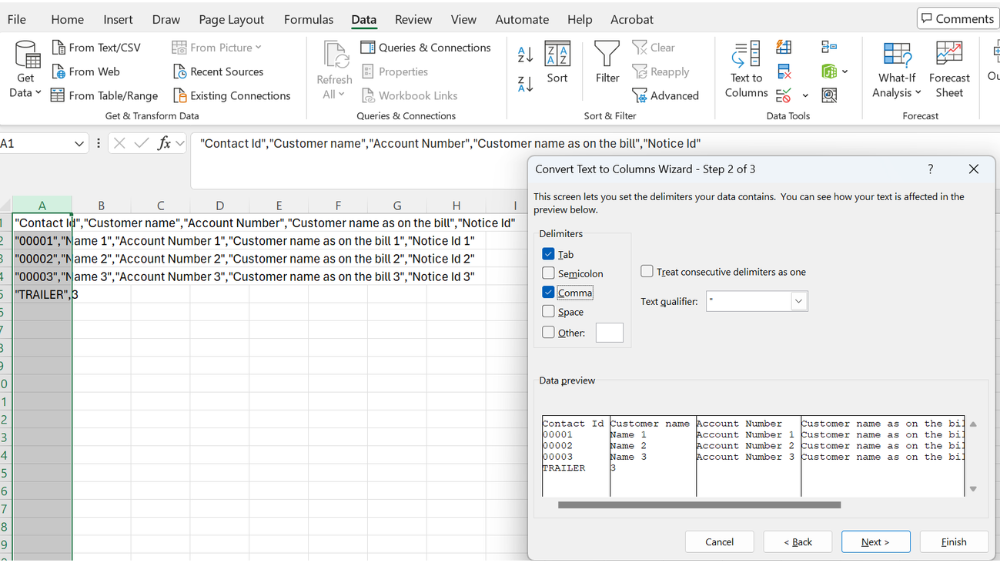
- Use the Text to Columns tool to separate the values by commas.
Things to check before importing
Before importing a file, make sure that:
- The file is saved in CSV format.
- The required column headings are present.
- The trailer (record count) is present and accurate.
- Each Contact ID appears only once in the file. A duplicate Contact ID stops the whole file from being imported.
- There are no blank cells. Enter a value such as NONE where a field must not be left empty.
- Required identifiers have not been altered unintentionally, for example leading zeroes removed, or long numbers converted to scientific notation.
- You understand whether the upload is incremental or is meant to replace the existing Contact list.
Ready to import
- Select Import Contacts.
- Select Choose files, then select the CSV file from your computer and select Open.
- Wait for Payreq to validate the file. Import Contacts becomes available once the file passes validation.
- Decide whether to replace all Contacts with the file values. If a Contact is not in the file, it will be deleted.
- Select Import Contacts to begin processing the file.
Replacing the existing Contact list
The import window includes a Replace all contacts with file values option.
Only select this when the CSV file contains the complete Contact list that should remain in Payreq Delivery. Contacts that are not included in a replacement file may be removed or made inactive as part of the import. For a partial or incremental Contact file, leave the replacement option unselected.
If the file contains a duplicate Contact ID
Payreq validates the file as soon as you select it. If any Contact ID appears more than once, a validation error appears and Import Contacts stays unavailable, so the file cannot be imported. Your existing Contacts are not changed. This is the case for a replacement file as well.
To fix this, find the repeated Contact ID in your CSV file, keep one record for it, update the trailer record count if the number of rows has changed, and select the corrected file again.
Adding or updating individual Contacts
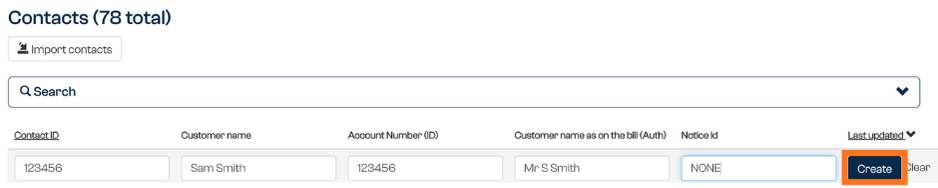
Adding a single Contact
- Enter the required Contact information.
- Select Create to save the record.
Fields marked as required must be completed before the Contact can be created.
Each Contact ID must be unique. If a Contact already exists with the same Contact ID, Payreq shows the message "Contact with this account number already exists." and does not create the Contact. To change an existing Contact, update it instead (see below).
Updating a Contact
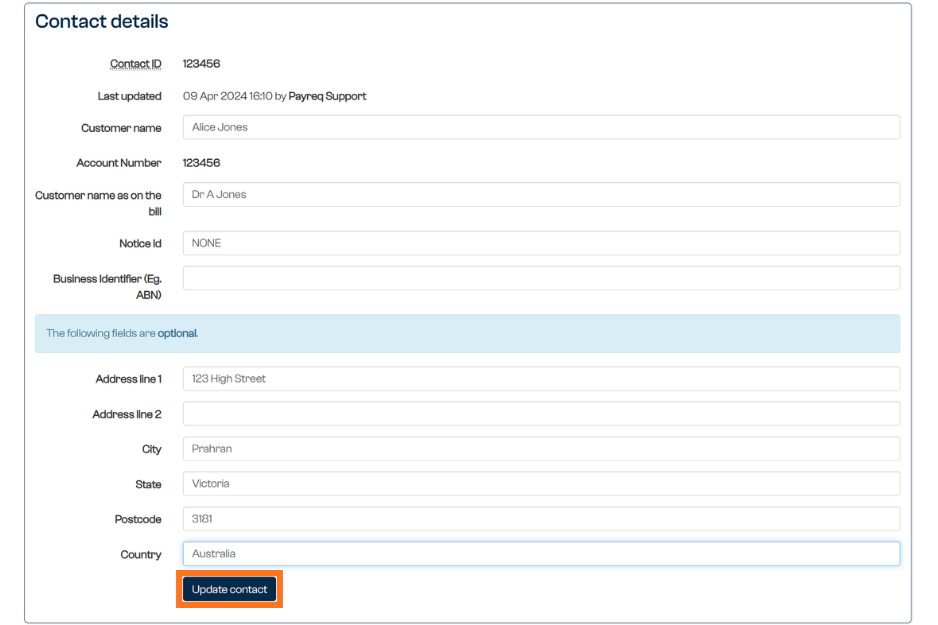
- Select the Contact to open its details.
- Update the fields you need to change.
- Review the changes for accuracy and select Update Contact to save.
Removing a Contact
Only remove a Contact when the record is no longer required, and after you've considered the effect on any associated Subscriptions.
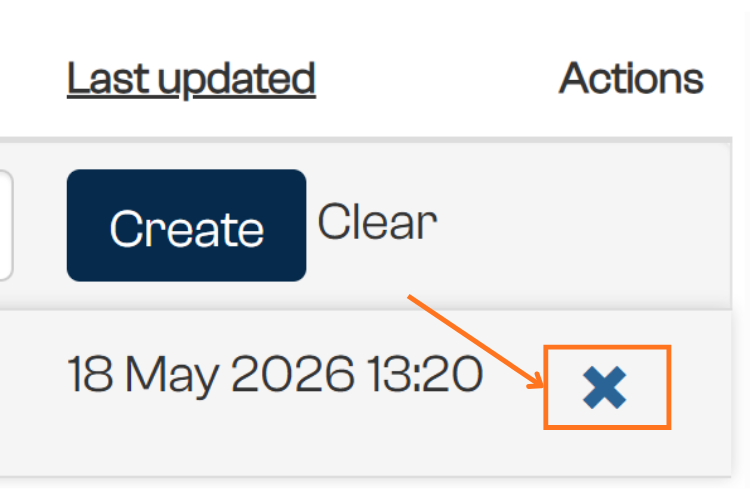
To remove a Contact, select the blue X (Delete Contact) on the right-hand side of the record row.
Do not remove a Contact simply because customer information has changed. Where the account or Contact remains valid, update the existing record instead.
Was this article helpful?
That’s Great!
Thank you for your feedback
Sorry! We couldn't be helpful
Thank you for your feedback
Feedback sent
We appreciate your effort and will try to fix the article