When delivery fails on at least one of a Mail item's channels, the item appears in the Undeliverable view for you to review and action. Undeliverable Mail is worth understanding well, because the right response depends on why the item was flagged, and in some cases the document has actually been delivered.
TABLE OF CONTENTS
- Failed delivery
- Failed notification
- Return to Sender
- One flag can cover multiple channels
- Reviewing and actioning undeliverable Mail
- Bounce-to-print
- Marking a Mail item as Undeliverable Actioned
- Retrieving undeliverable documents
- Watch for patterns
- Best practices
Payreq reports many specific undeliverable reasons, but they fall into three groups based on how you should handle them.
Failed delivery
The document did not reach the recipient through that channel. The most common cause is a bounced email on the email (non-Payreq) channel:
- Bounce, permanent: the address is invalid. The Subscription is automatically deregistered, and the document is flagged Undeliverable.
- Bounce, transient: a temporary failure. Payreq retries, and flags the document Undeliverable after the fifth failed attempt. Depending on when the Mail was approved for sending, the final attempt may fall on the following day.
Do not read a quiet first day as confirmation that everything was delivered. Check the Undeliverable view again the day after a run.
The affected channel did not deliver the document. Check the other channel outcomes before reprinting. If no acceptable delivery succeeded, the item may need to be reprinted and posted or bounced to print (see below).
Failed notification
The document was delivered, but a notification about it failed. The delivery itself succeeded, so you don't need to re-send the document:
- BPAY View: the BPAY View scheme requires the customer's bank to email them when a new bill arrives. If that notification email bounces, Payreq reports "The payer's financial institution was unable to email the payer." The bill still reached the customer's online banking; only the bank's notification email failed.
- Payreq Mailbox with an email copy: a document delivered to a Payreq Mailbox may also be emailed to the customer as a PDF, depending on their preference. If that email bounces, the item is flagged Undeliverable, but the document was successfully delivered to the Mailbox. Only the email copy failed.
For failed notifications, you can encourage the customer to correct their email address (in internet banking for BPAY View, or in their Payreq email preferences), but you don't need to re-deliver the document.
Return to Sender
A Payreq Mailbox user can return a document they believe was delivered to them in error, using the Return to Sender option. It's available until the due date of the most recently delivered document. When a customer uses it:
- Their Subscription is deregistered.
- That specific document is removed from their Mailbox.
- The item is flagged Undeliverable in your Mail tab.
A returned document usually means the document reached the wrong recipient, so update the Contact to the correct owner or agent before re-sending. Bounce-to-print is not suitable here, because the postal address is likely wrong too. Where available, include these documents with any physically returned mail packs instead.
One flag can cover multiple channels
A document is flagged Undeliverable when at least one digital delivery channel has an issue. So an item marked Undeliverable may already have been delivered successfully on another channel. Every delivery outcome for the item, successful and failed, is visible from the Mail tab, so open the item and check its channels before assuming the customer didn't receive it. For the full list of reason codes, which category each falls into, and how to decide whether an item should be printed, see Managing undeliverable Mail: reason codes and bounce-to-print.
Reviewing and actioning undeliverable Mail
Step 1: View undeliverable Mail
- Go to the Mail tab.
- Filter by Status > Undeliverable, or open the Undeliverable view.
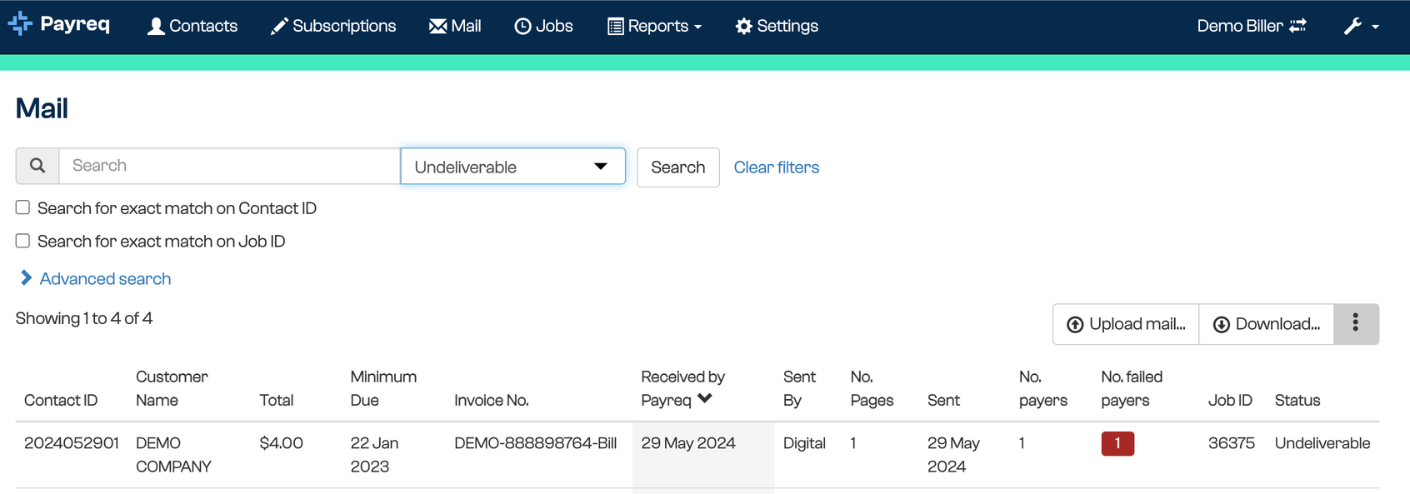
Use the advanced search or filters to narrow by date, Contact ID, Job ID, or delivery channel.
Step 2: Investigate the cause
- Select a Mail item to open its full detail and delivery history.
- Scroll to the Mail recipients section.
- Review the Non-delivery reason and identify which of the three types above it is.

Step 3: Take action
- Failed delivery: reprint and post the document, or bounce it to print. Update the Contact first if the details were wrong.
- Failed notification: no re-delivery needed. Prompt the customer to correct their email if you want to restore notifications.
- Return to Sender: update the Contact to the correct recipient, then re-send. Don't bounce these to print.
Bounce-to-print
Where it's set up, failed-delivery items can be bounced to print, so Payreq passes them to your mailhouse to be printed and posted physically. Bounce-to-print isn't automatic: it needs to be arranged with your mailhouse, and not all mailhouses offer it. It's also not suitable for Return to Sender items, because the postal address is likely wrong. For how it works, see Managing undeliverable Mail: reason codes and bounce-to-print.
Marking a Mail item as Undeliverable Actioned
Once you've handled an undeliverable item, mark it actioned. This clears it from the Undeliverable queue while keeping a record of what you did.
- Go to the Mail tab and open the Undeliverable view.
- Select the item to open its detail.
- Select the blue External Action button.
- Enter a short description of what you did, for example "Forwarded to property owner manually" or "Confirmed agent no longer manages this property".
- Select Save Action.

The status updates to Undeliverable Actioned and the item moves out of the active queue, with the action and date saved in its history.
Retrieving undeliverable documents
You can retrieve undeliverable documents by their dispatch date or by their return or undeliverable date, for example to download and reprint them.
Watch for patterns
After each bill run, review undeliverables for trends, such as repeated name mismatches from a single source, expired Subscriptions following property sales, or agent-managed properties no longer linked to a group Mailbox. Share these patterns with your billing or mailhouse teams so the underlying data or formatting can be corrected upstream.
Best practices
- Review the Undeliverable view after every upload or bill run.
- Check the reason before acting, some undeliverable items were delivered another way.
- Keep your Contacts accurate and aligned with your source system.
- Use Mark as Undeliverable Actioned to keep the queue tidy.
Was this article helpful?
That’s Great!
Thank you for your feedback
Sorry! We couldn't be helpful
Thank you for your feedback
Feedback sent
We appreciate your effort and will try to fix the article