The Subscriptions page is where you view, create, update, export, and deregister the digital delivery Subscriptions for your customers. This article covers the layout of the page and what each Subscription status means.
Page actions
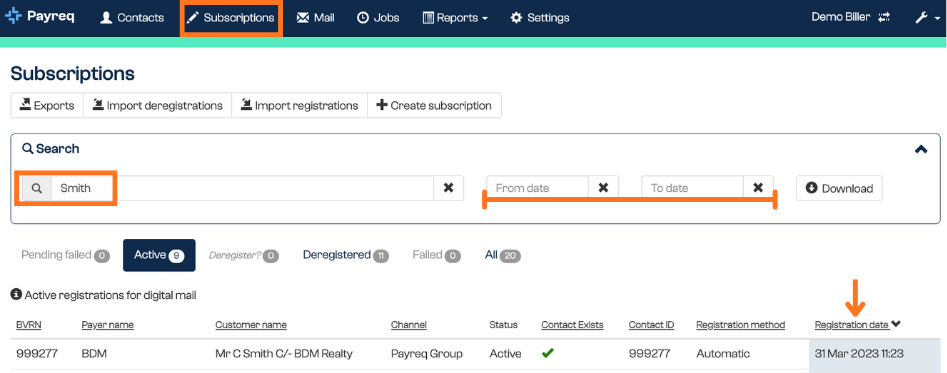
At the top of the Subscriptions page you'll find the main actions:
- Export: export your current Subscriptions list to a CSV file.
- Import deregistrations: upload a file to bulk-cancel Subscriptions.
- Import registrations: upload a file to bulk-create Subscriptions.
- Create subscription: manually create a single Subscription from within the platform. See Creating a Subscription on behalf of a customer.
(Payreq still labels these actions with the word "registration," which means the same as Subscription.)
Searching and filtering
Use the search panel to find specific Subscriptions:
- Search bar: enter a name, Contact ID, account number, or other identifying detail.
- From date / To date: filter Subscriptions by the date they were registered or updated.
- Download: export the filtered results to a CSV file for reporting or auditing.
You can expand or collapse the filter panel using the arrow icon in the top right corner of the search area.
For more on the two export options, see Downloading Subscriptions.
Subscriptions awaiting review
Two statuses need your review. Payreq groups these as Subscriptions awaiting review, and you can go straight to them from the Dashboard or the Subscriptions submenu:
- Pending Failed: the details the customer entered, usually the authorisation value, didn't automatically match your Contact data, so the Subscription needs you to review it and either approve or reject it.
- Deregister?: a name change has been identified on an active Subscription, so it needs review to confirm whether it still applies.
You can also view your Active and Cancelled Subscriptions from here.
Subscription statuses
Every Subscription has a status that shows where it's up to. The status depends on your settings and the quality of the details the recipient provided.
| Status | Meaning | Action needed? |
|---|---|---|
| Active | The Subscription is approved and working. | No. |
| Pending Failed | The customer's details (usually the authorisation value) didn't automatically match your Contact data, so it's awaiting your review. | Yes, review and approve or reject it. |
| Failed | The match was unsuccessful and the request was rejected. | No, unless the customer tries again. |
| Deregister? | A likely mismatch, usually caused by a name or ownership change. | Yes, review it and take action. |
| Deregistered | The Subscription was cancelled by the customer or by you. | No, unless it needs to be re-registered. |
Subscriptions are always tied to Contacts. If a customer's name changes, for example after a property sale or a change in your source system, the Subscription may be flagged, failed, or deregistered. Keeping your Contacts up to date reduces these issues. See How Contact changes affect Subscriptions.
Payroll-oriented accounts: different labels for the same statuses
Some payroll-oriented accounts show different labels for the same actions and tabs described above, while the underlying Subscription record still carries the status shown above. Where this guide's screens show Import deregistrations, Deregister and a Deregistered tab, an equivalent payroll-oriented account may show Import deactivations, Deactivate and a Deactivated tab instead. A Subscription cancelled from either version of the screen carries the same underlying status, Deregistered.
This guide describes the ordinary billing labels. If your account shows the payroll-oriented labels, use the equivalent action for your screen; the behaviour and the recorded status are the same either way.
Managing each status
- For Pending Failed and Failed Subscriptions, see Reviewing pending failed Subscriptions.
- For Subscriptions flagged Deregister?, see Managing "Deregister?" Subscriptions.
Was this article helpful?
That’s Great!
Thank you for your feedback
Sorry! We couldn't be helpful
Thank you for your feedback
Feedback sent
We appreciate your effort and will try to fix the article