You can create a Subscription for a customer yourself, rather than waiting for them to subscribe. This is useful when you already hold the customer's details, or when you're moving customers from paper to digital without asking them to self-register.
The type of Subscription created depends on the email address you enter. If the address already belongs to a Payreq Mailbox, the Subscription is added to that Mailbox, as a group Subscription where it's a group (business) Mailbox. Otherwise it's a manual email subscription. There's no email verification step, so enter the details carefully, especially the email address, since a wrong address won't be confirmed before documents are sent. You can create Subscriptions on a customer's behalf for any channel except BPAY View.
To create a Subscription
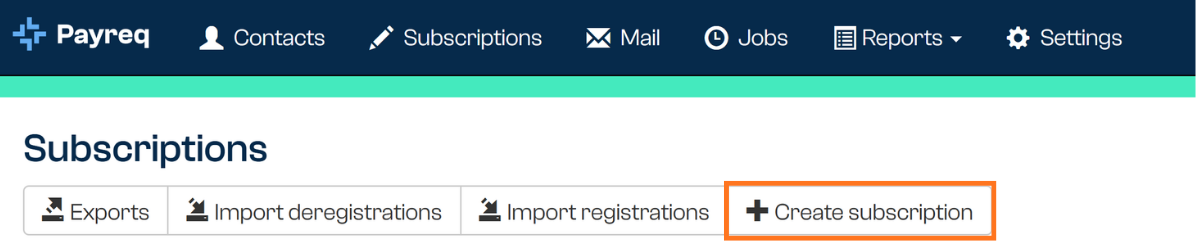
- Go to the Subscriptions tab in your Payreq Delivery console.
- Select Create Subscription.
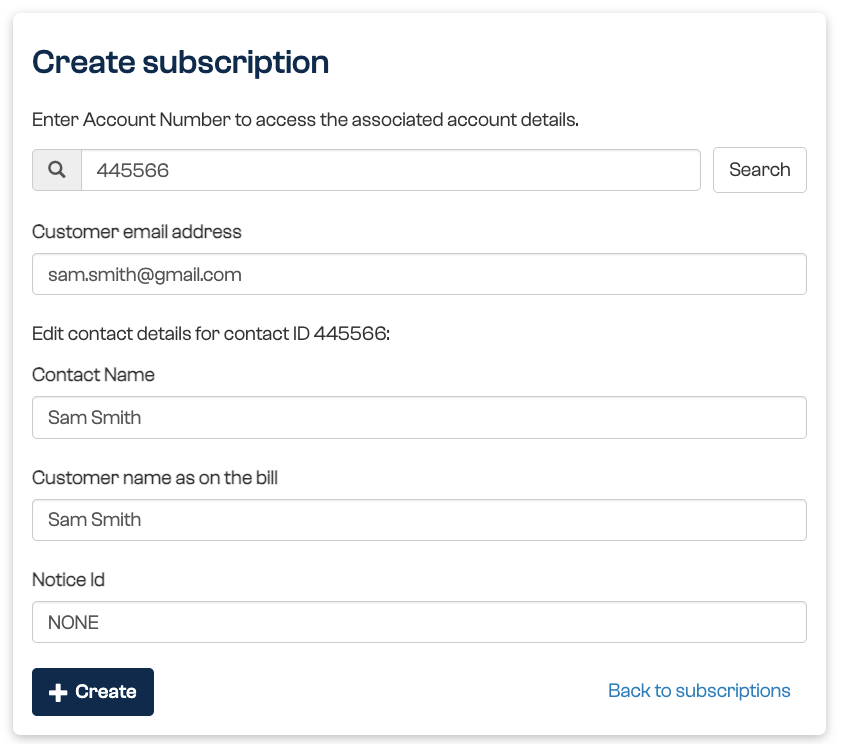
- Enter the account identifier requested on screen, such as Account Number or BVRN, then select Search to display the associated account details.
Important: pay close attention to what the Search returns before you continue. If it finds the customer or account record in Contacts, confirm the details shown match what you already hold. If no customer details are returned, it is best to perform a quick check for why that account isn't recorded in Contacts.
A mistyped identifier, for example with extra spaces or the wrong number of digits, will also return nothing. Double-check the identifier first, and only enter the customer's details manually once you're confident this is genuinely a new customer or account.
Creating a Subscription using an identifier that wasn't matched creates a new Contact (rather than linking to the existing one), and if the identifier is incorrect, that Subscription will not be able to accurately match when checked for documents requiring digital delivery.
- Complete or check the details shown. Depending on the account, these can include:
- Customer email address
- Contact name
- Customer name as it appears on the bill
- Notice ID
- Select +Create.
For a manual email subscription, the customer will begin receiving their documents as PDF attachments at the email address you entered. Where the address belongs to a Payreq Mailbox, documents are delivered to that Mailbox. Depending on how your delivery is configured, the customer may also receive each document by email as a PDF attachment.
If the email address belongs to an authorised agent
Where the Allow MyBills Agent registrations from Contacts Mailer option is enabled and an agent has authorised you, you can't use Create Subscription for that agent's email address. When you select +Create, Payreq shows a message that the address belongs to an agent with an authorised group code. Entering the agent's Notice ID or Group Account in the form doesn't change this.
To add a property for that agent:
- In Settings > Authorisations, find the agent and check the identifier (for example, Notice ID) shown against their authorisation.
- Update the property's Contact with that identifier through your usual source data and Contacts update process.
- Once the update has been processed, check that the agent's group Subscription for that Contact appears on the Subscriptions tab.
The message also suggests asking the agent to complete a change of address or group account management process. For an agent you manage from your Contacts, the change is made in your records.
Where the Mailer option is off, Create Subscription accepts an authorised agent's email address and creates a group Subscription as usual. You can also use it for agents who manage their own Subscriptions.
For how this arrangement works, see Agent authorisations: overview and how the pieces connect.
For the other ways a Subscription can come to exist, see How are Subscriptions created?. For how manual email compares with the other subscription types, see Subscription channels: what's available in Payreq Delivery.
Was this article helpful?
That’s Great!
Thank you for your feedback
Sorry! We couldn't be helpful
Thank you for your feedback
Feedback sent
We appreciate your effort and will try to fix the article