Agent Authorisations let an agent give you permission to help manage their Subscriptions. This is what makes the Mailer-managed model possible: once an agent authorises you, you can add Subscriptions on their behalf, and (depending on your Mailer options) keep them current automatically through your Contacts updates.
An agent's accounts are tied together by an identifier called a Group Account, Notice ID, or Major Agent, depending on your account. These are variations on the same concept; the field's label is configured during onboarding, and is usually Contact Field 3. See Understanding Contact Field Settings.
For how agent (Group) Subscriptions are managed overall, and the difference between self-managed and Mailer-managed, see Group (agent) Subscriptions.
This article covers sending, viewing, and cancelling agent authorisations.

Sending an authorisation request
You request authorisation from the agent, and they confirm it:
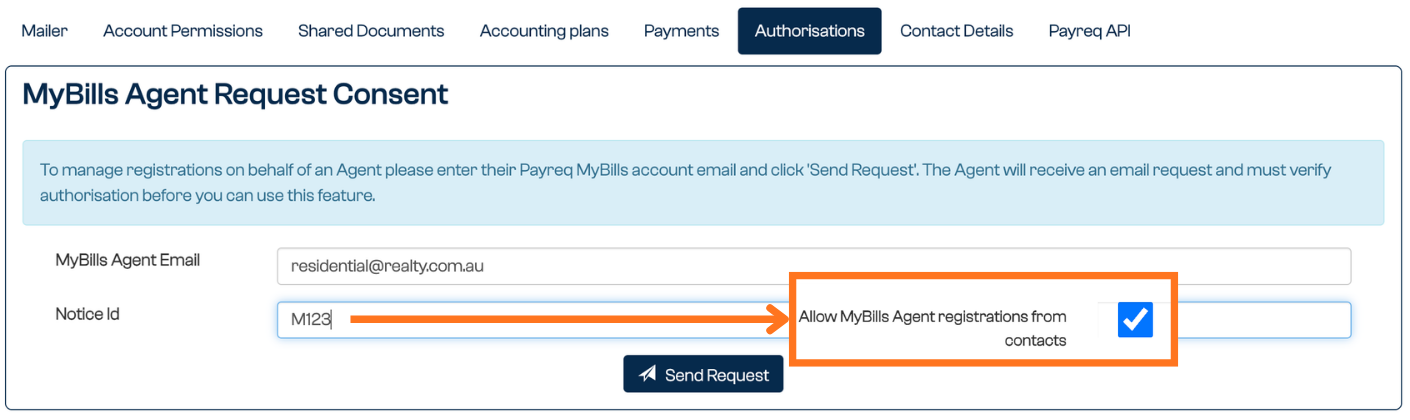
- Go to Settings > Authorisations.
- Start a new authorisation request.
- Enter the email address the agent uses for their Payreq Mailbox.
- Where the Allow MyBills Agent registrations from Contacts Mailer option is enabled, also enter the relevant Group Account, Notice ID, or Major Agent details.
- Select Send Request.
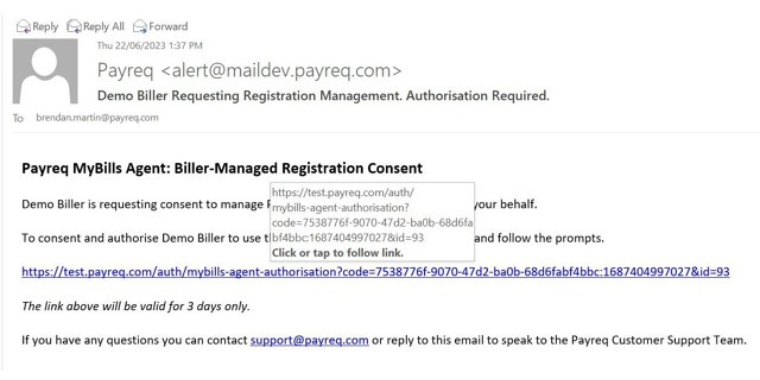
The agent receives an Authorisation Request email with a confirmation link.
What the agent does
- The agent opens the email and follows the confirmation link.
- They verify their security details.
- They select which account to authorise.
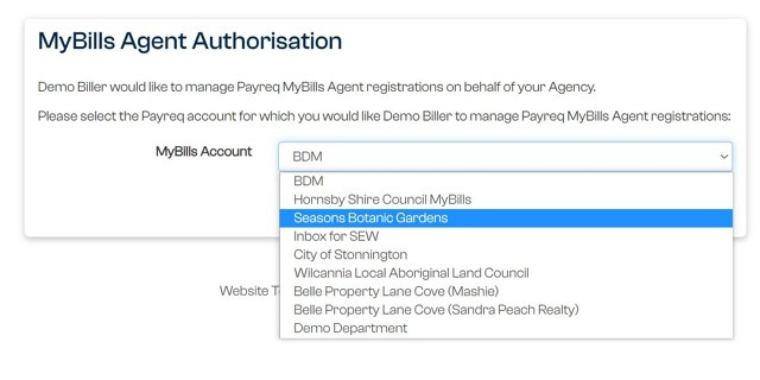
Once the agent confirms, the authorisation is active.
Viewing and cancelling authorisations
Your authorised agents appear in the Authorisations list, where you can review existing authorisations and cancel one that's no longer needed.
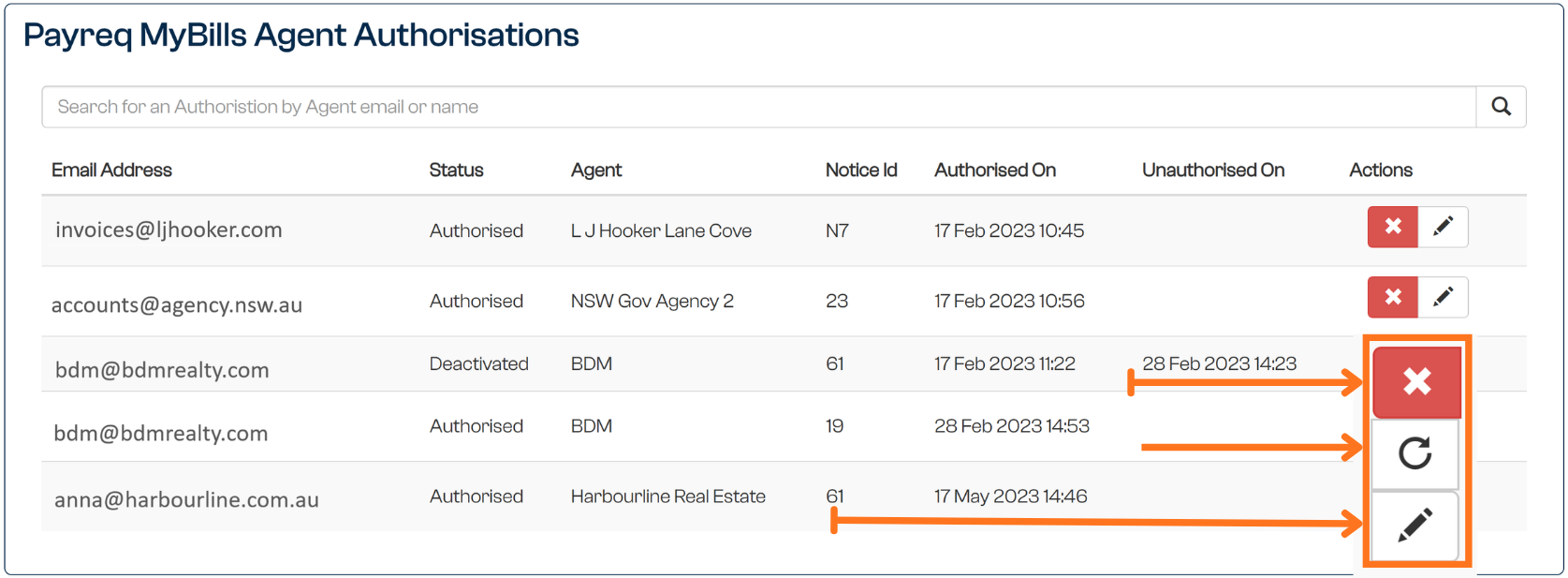
One important point about this list: the agent email shown against each authorisation is only a record of who received and accepted that request. It is not a current user list or an address book. Some authorisations have been in place for years, and the original contact may have moved on, so don't rely on these email addresses to contact the agent.
What the authorisation enables
Once an agent is authorised, what happens next depends on your Mailer options:
- You can add Subscriptions on the agent's behalf, individually or in bulk, using Import registrations on the Subscriptions tab.
- Where Allow MyBills Agent registrations from Contacts is off, you can also use Create Subscription with the agent's email address, and the agent can still manage their own Subscriptions.
- Where it's enabled, the agent's Subscriptions are also kept current automatically as part of your Contacts updates. Create Subscription doesn't accept that agent's email address, so to add a single property, update its Contact with the identifier shown against the authorisation. If the Contact doesn't carry the agent's identifier, the next update to that Contact deregisters a Subscription added with Import registrations. See Creating a Subscription on behalf of a customer.
For the full picture of both models and how Contact updates flow through, see Group (agent) Subscriptions and How Contact changes affect Subscriptions.
Was this article helpful?
That’s Great!
Thank you for your feedback
Sorry! We couldn't be helpful
Thank you for your feedback
Feedback sent
We appreciate your effort and will try to fix the article